Get API access
To call the platform's CAMARA APIs from your own applications, you need an API client: a client ID and a secret that your application trades for an access token. In this tutorial you create one in the Portal, look inside its token, call the Open Exposure Gateway (OEG) with it, watch OEG refuse what the client may not do, and delete the client again.
Before you start
You need:
-
A running platform with login turned on, installed on kind as described in Deploy with Helm. The commands below use the kind addresses:
What URL Portal http://localhost:30082Keycloak http://localhost:30081OEG API http://localhost:32263 -
An account that holds at least one API product. On kind, the sample user
dev-providerholds all four. For your own account, an administrator grants products as in Manage users and access. The screenshots showalice, who holds only Edge Application Management. curlandjq.
How it fits together
- The Portal registers the client in Keycloak for you. You only ever see its ID and secret.
- Your application sends the ID and secret to Keycloak and gets an access token back, valid for 5 minutes.
- Your application calls OEG with that token. OEG checks the token's signature, its role and its scopes before it does anything.
sequenceDiagram
    participant You as You, in the Portal
    participant App as Your application
    participant KC as Keycloak
    participant OEG
    You->>KC: Create API client (through the Portal)
    KC-->>You: Client ID and secret, shown once
    App->>KC: Client ID and secret
    KC-->>App: Access token, 5 minutes
    App->>OEG: API call with the token
    OEG-->>App: Answer, or 401 / 403
1. Create an API client
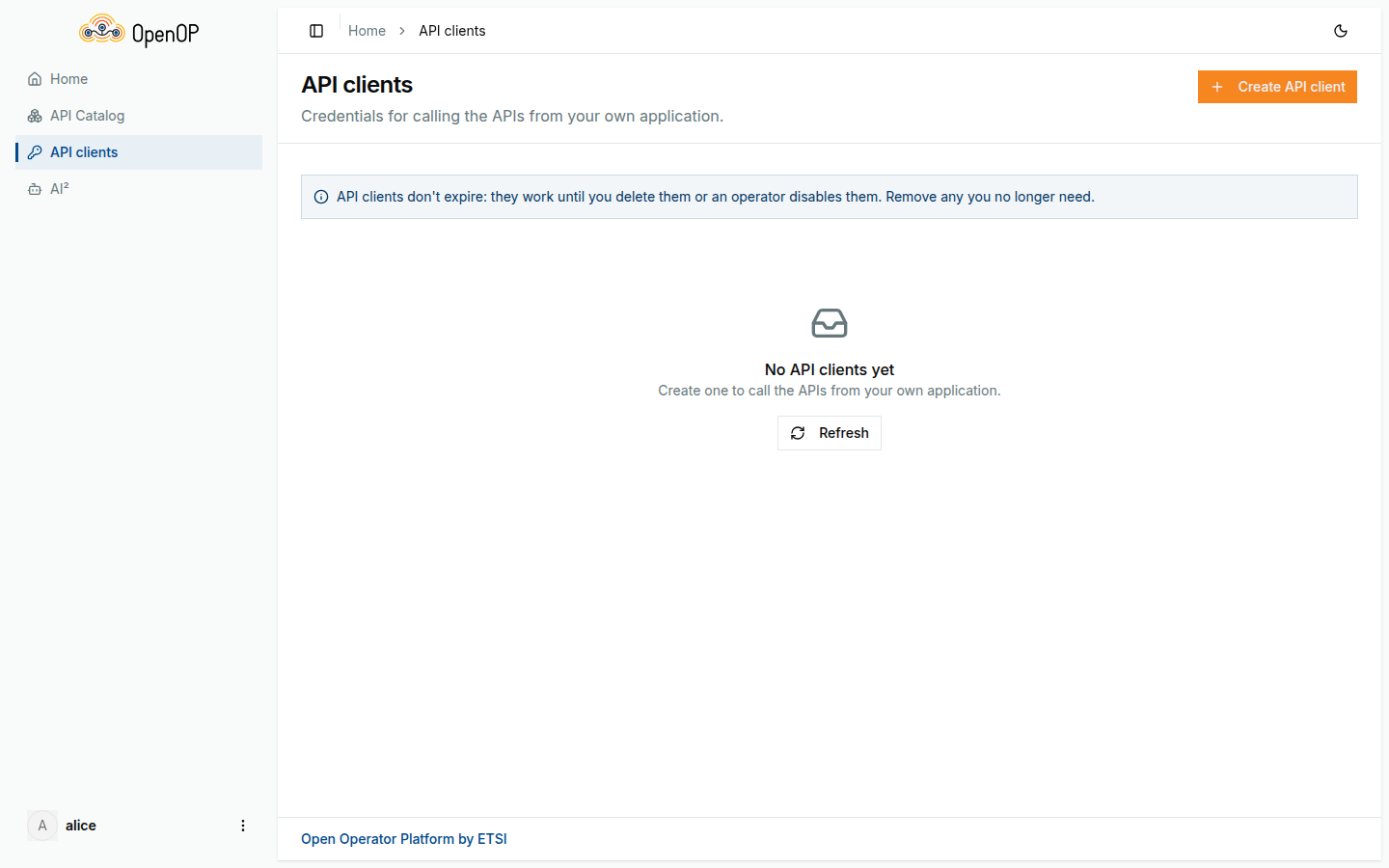
Sign in to the Portal and open API clients in the sidebar.
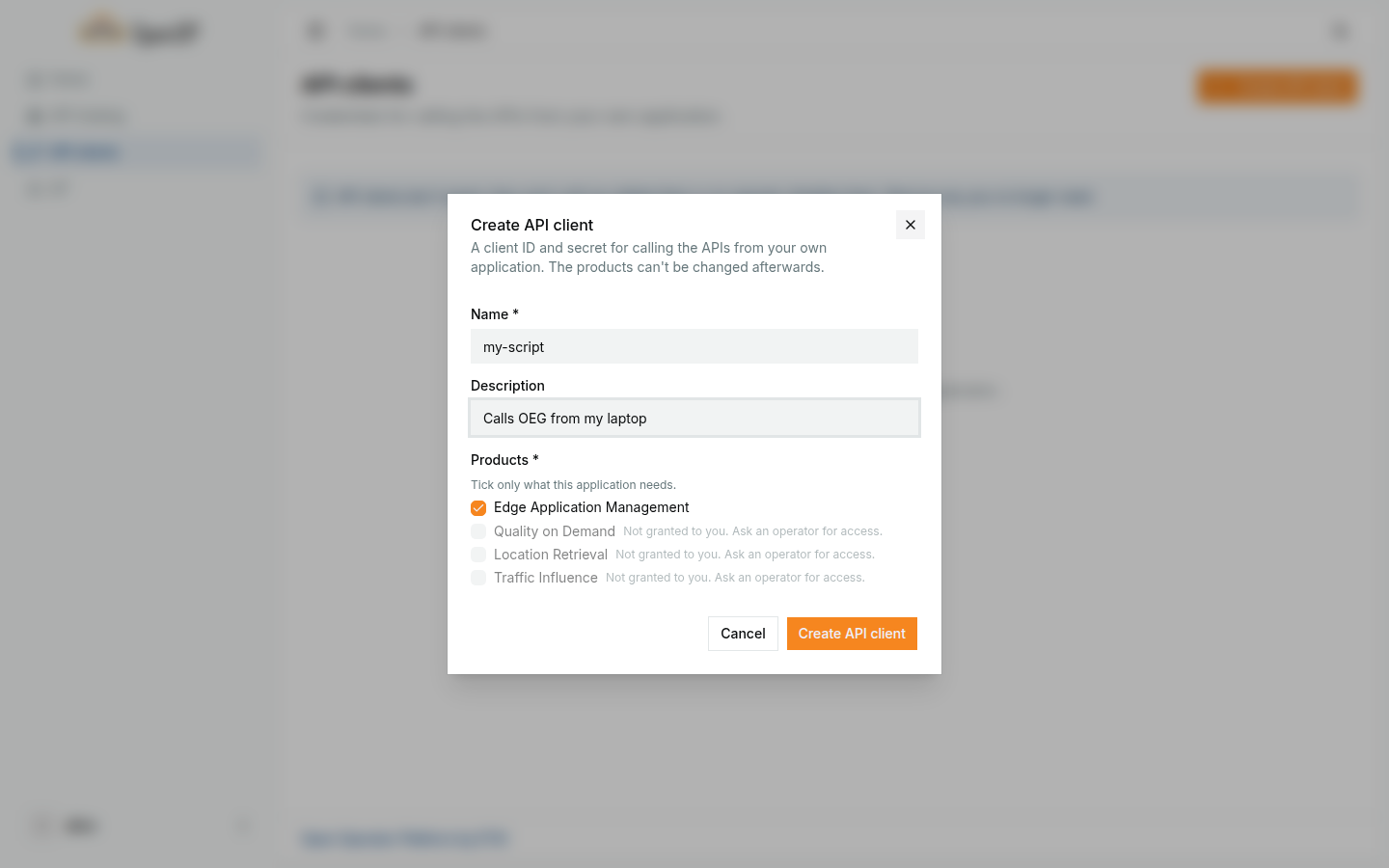
Click Create API client. Give it a Name, for example my-script, and tick the Products it needs. You can tick only products you hold; the others are marked Not granted to you. The products cannot be changed afterwards: for other products, create another client.
Click Create API client. Creating it takes a few seconds. The next dialog shows the Client ID and the Client secret, a ready-made curl command for a token, and the OEG address.
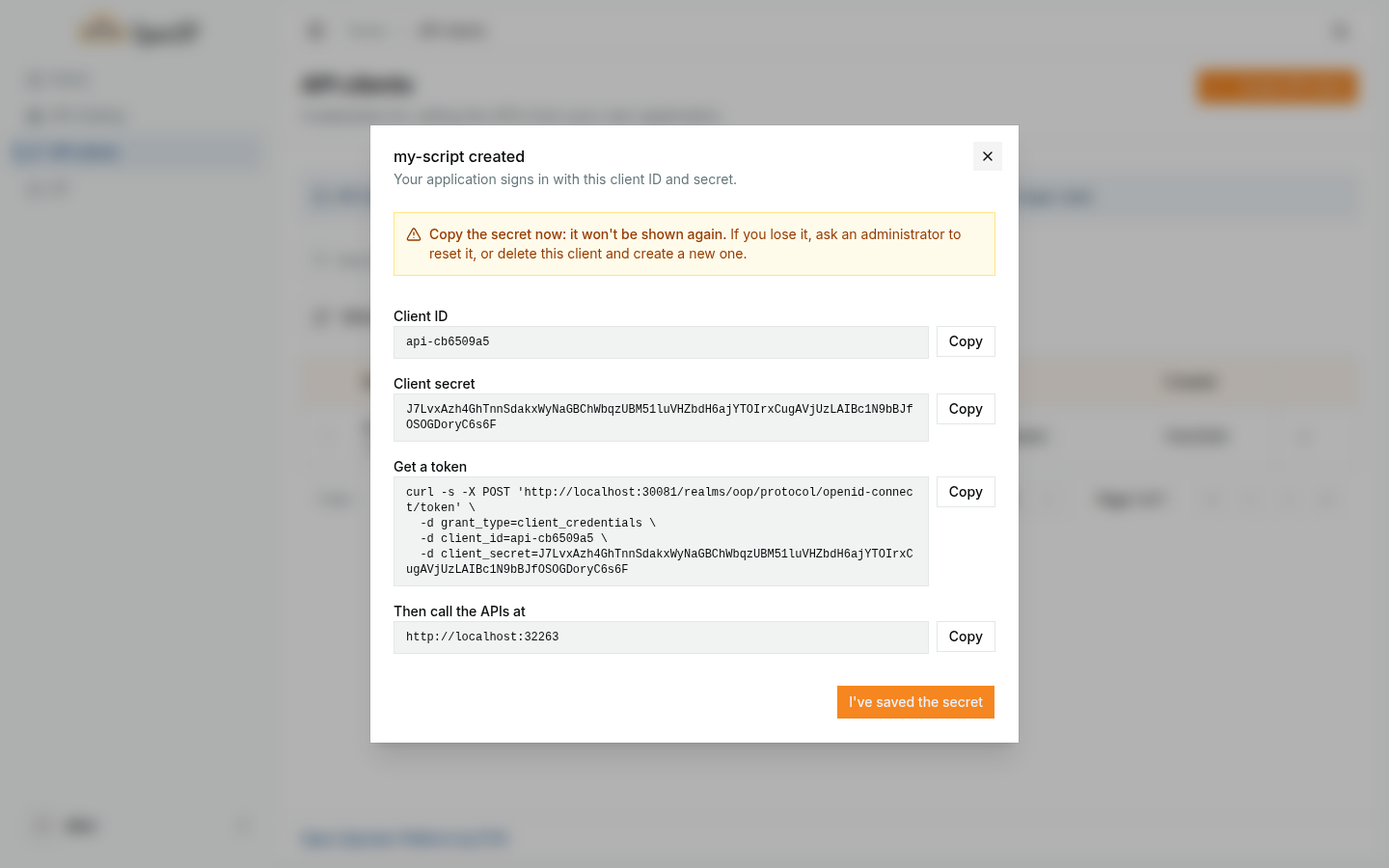
Copy the secret now
The secret is shown only in this dialog. The Portal does not store it, so nobody can show it to you again.
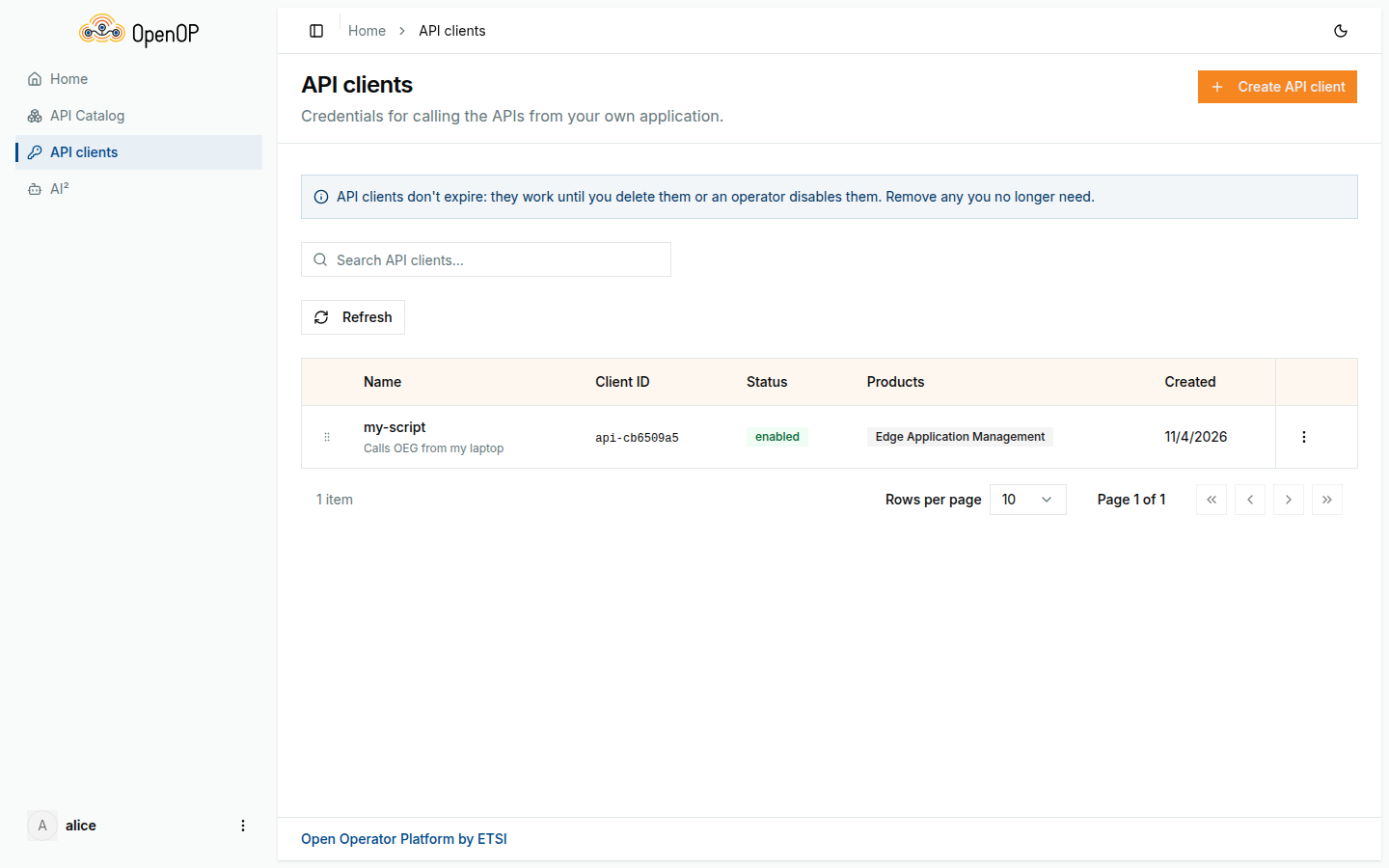
Click I've saved the secret. The client is now in your list. You can have up to five, each with its own name.
2. Get an access token
Put the client's credentials into the shell and ask Keycloak for a token:
export CLIENT_ID=<your client ID>
export CLIENT_SECRET=<your client secret>

TOKEN=$(curl -s http://localhost:30081/realms/oop/protocol/openid-connect/token \
  -d grant_type=client_credentials \
  -d client_id="$CLIENT_ID" \
  -d client_secret="$CLIENT_SECRET" | jq -r .access_token)
echo "$TOKEN" | cut -c1-20
The last line prints the start of the token. If it prints null, the client ID or secret is wrong.
The token expires after 5 minutes: Keycloak's answer says so in expires_in, in seconds. There is no refresh token. The client ID and secret stay valid until the client is deleted, so an application that runs for longer simply asks for a new token the same way, shortly before the old one expires or when OEG answers 401.
3. Look inside the token
The token is a JSON Web Token: its middle part is plain JSON. Decode it and pick the claims that matter:
jq -R 'split(".")[1] | gsub("-";"+") | gsub("_";"/") | @base64d | fromjson
  | {aud, azp, scope, organization, app_provider_id, roles: .realm_access.roles}' <<< "$TOKEN"
{
  "aud": ["oeg", "account"],
  "azp": "api-cb6509a5",
  "scope": "edge-application-management:instances:write edge-application-management:apps:delete ...",
  "organization": "acme-labs",
  "app_provider_id": "bdb33214-91ab-4b15-b207-e88e4d853ab9",
  "roles": ["offline_access", "app-provider", "uma_authorization", "default-roles-oop"]
}
| Claim | What it says |
|---|---|
aud |
The token is meant for OEG. |
azp |
Your client ID. |
scope |
The scopes of the products you ticked, and nothing else. |
organization |
Your organization ID when the client was created, or your user ID if you had none. |
app_provider_id |
Your own user ID: the client acts for you. |
roles |
app-provider, which OEG requires for every CAMARA call. |
Because the client acts for you, whatever it creates is yours: an application registered through it shows up under your Application profiles in the Portal.
4. Call OEG
List the edge cloud zones, a call your client's Edge Application Management product allows:
OEG=http://localhost:32263
curl -s "$OEG/edge-application-management/v0.1alpha1/edge-cloud-zones" \
  -H "Authorization: Bearer $TOKEN" | jq
[
  {
    "edgeCloudZoneId": "65296dc2-5ea5-53ab-8df1-f0b88671fc40",
    "edgeCloudZoneName": "kind local zone",
    "edgeCloudProvider": "oop-provider",
    "edgeCloudZoneStatus": "active"
  }
]
5. See OEG refuse a call
Call without a token:
A damaged or expired token gets 401 too. Now call an API whose product your client does not hold, here Quality on Demand:
curl -s "$OEG/quality-on-demand/v1/sessions/0e5bd5b4-5f6c-4b7a-9e2e-111111111111" \
  -H "Authorization: Bearer $TOKEN" | jq
{ "status": 403, "code": "PERMISSION_DENIED", "message": "Caller is missing the required scope: quality-on-demand:sessions:read" }
401 means OEG does not know who you are; 403 means it does, but your token lacks what this call needs.
6. Delete the client
In API clients, open the menu at the end of the client's row, choose Delete, and confirm.
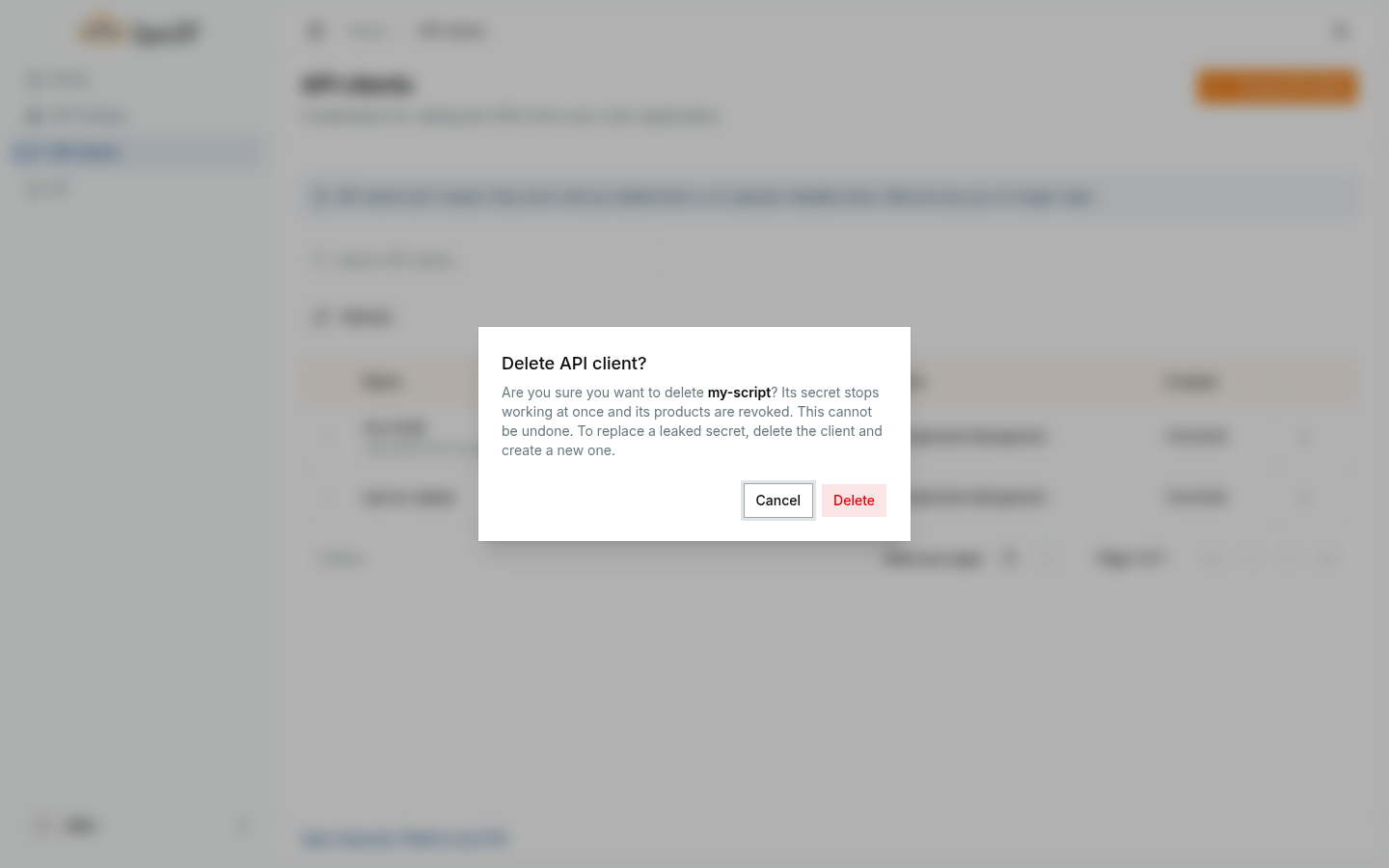
Ask for a token again, as in step 2. Keycloak now refuses:
A token issued before the delete keeps working until it expires, at most 5 minutes later.
When something changes around your client
A client keeps what it got at creation. The Portal does not follow changes made in Keycloak.
| What happens | What it means for your clients |
|---|---|
| You lose the secret | Delete the client and create a new one. Or ask an administrator to regenerate the secret: the old one stops working at once. |
| You need other products | Create a new client; products cannot be changed. |
| You lose a product, or move to another organization | Your existing clients keep the product and the old organization. An administrator removes the product from them, or you delete them and create new ones. |
| Your account is disabled or deleted | Your clients keep working until an administrator deletes them. |
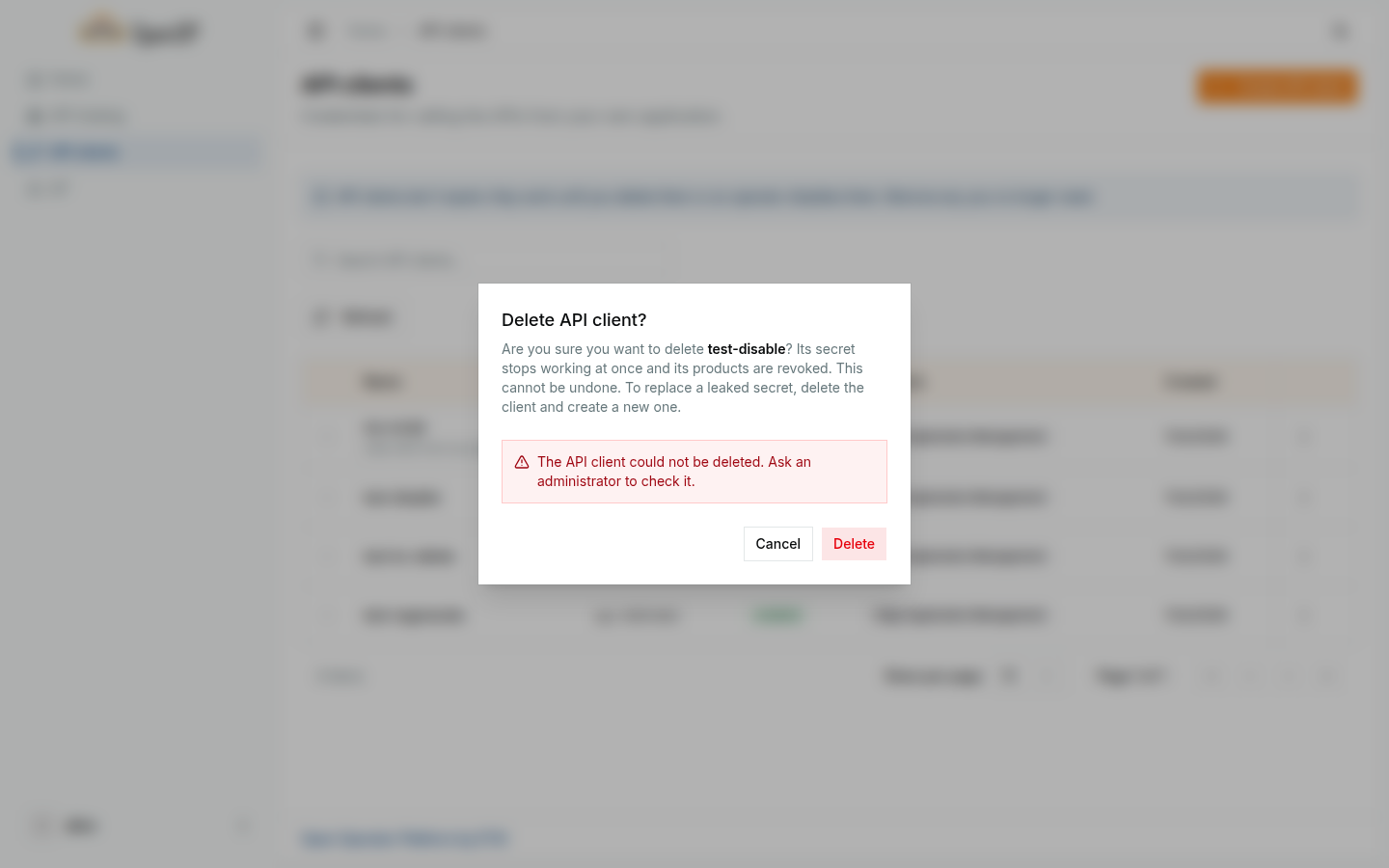
| An administrator disables or deletes a client in Keycloak | It gets no more tokens, but the Portal still lists it as enabled, and Delete fails with The API client could not be deleted. Ask an administrator to check it. A disabled client can be deleted again once the administrator enables it. A client deleted in Keycloak stays in your list and counts toward your five. |
What you learned
- An API client is a client ID and secret that the Portal registers in Keycloak for you. The secret is shown once.
- Your application trades them for a 5-minute token, which carries your products as scopes and acts for you.
- OEG answers
401without a valid token and403when the token lacks a scope. - Deleting a client stops new tokens at once; issued tokens run out within 5 minutes.
- Clients keep their products and organization; to change them, delete the client and create a new one.
Next steps
- Deploy your first application: use your client in the API tab.
- Use network capabilities: call Quality on Demand, Location Retrieval and Traffic Influence.
- The rules behind API clients are in the spec's Requirements & Design › API Clients.