Deploy your first application
In this tutorial you take a small web application through its whole life on the platform: you register it, start an instance of it in an edge cloud zone, call it, and remove it again.
The application is whoami, a tiny web server that answers every request with the name and IP address of the container that served it. That makes it easy to see that your request really reached the copy the platform started for you.
Every step has two tabs. Portal shows the step in the web interface. API shows the same step as a curl call to the Open Exposure Gateway (OEG), the API that the Portal itself uses. You can follow either tab, or both.
Before you start
You need:
-
A running platform with login turned on, installed on kind as described in Deploy with Helm. The commands below use the kind addresses:
What URL Portal http://localhost:30082Keycloak http://localhost:30081OEG API http://localhost:32263 -
An App Provider account. On kind, the sample user
dev-providerworks. Deploy with Helm shows how to read its password. - For the API tab: an API client holding the
edge-application-managementAPI product, pluscurlandjq. Get API access shows how to create the client.
Running without login?
If you installed the platform with login turned off, as in the Quickstart, you can still follow this tutorial. In the Portal you are signed in straight away. In the API tab, skip step 1 and leave out the -H "Authorization: Bearer $TOKEN" line from every call.
How it fits together
Three components take part:
- The Portal and your own scripts talk to OEG, which offers the CAMARA Edge Application Management API.
- OEG keeps track of your applications and instances, and asks the Service Resource Manager (SRM) to do the actual work.
- SRM installs the application on the Kubernetes cluster behind the edge cloud zone you choose. On kind, that is the kind cluster itself, in the namespace
oop-apps.
flowchart LR
    you[You: Portal or curl] --> oeg[OEG]
    oeg --> srm[SRM]
    srm --> zone[Edge cloud zone: kind cluster, namespace oop-apps]
Two words matter in this tutorial:
- An application is a description of your software: its container image, the ports it listens on and the resources it needs. Registering it does not start anything.
- An application instance is one running copy of that application in one zone.
1. Sign in
Open the Portal at http://localhost:30082 and sign in as dev-provider.
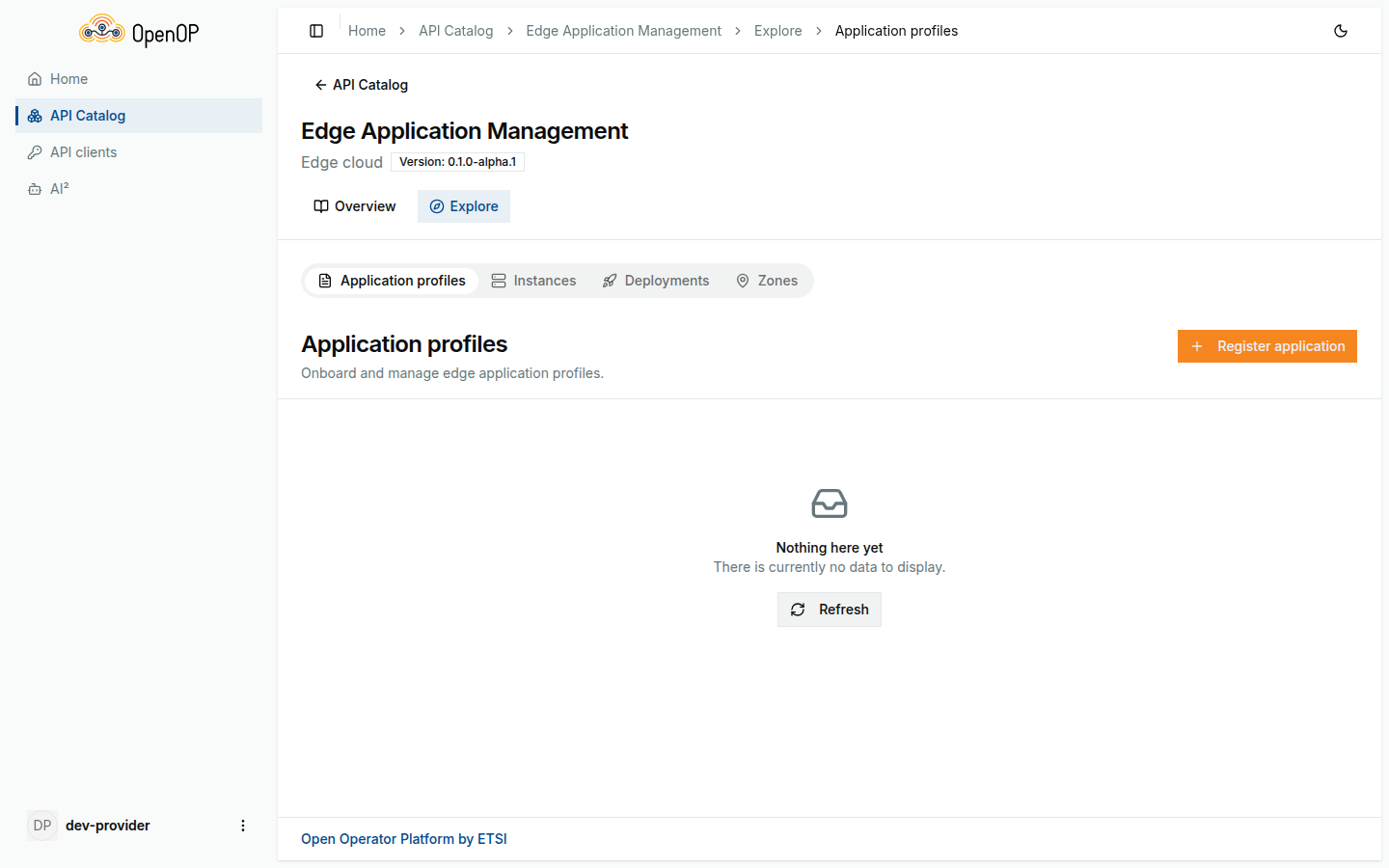
In the sidebar, open API Catalog, choose Edge Application Management, and click Explore. The Explore page has four tabs: Application profiles, Instances, Deployments and Zones. You work on these tabs for the rest of this tutorial.
Put your client's credentials into the shell and ask Keycloak for an access token:
export CLIENT_ID=<your client ID>
export CLIENT_SECRET=<your client secret>

TOKEN=$(curl -s http://localhost:30081/realms/oop/protocol/openid-connect/token \
  -d grant_type=client_credentials \
  -d client_id="$CLIENT_ID" \
  -d client_secret="$CLIENT_SECRET" | jq -r .access_token)
echo "$TOKEN" | cut -c1-20
The last line prints the start of the token. If it prints null, the client ID or secret is wrong.
Also set the base URL of the API, so the calls below stay short:
The token expires after 5 minutes. If a call later answers 401, run the token command again.
2. Find an edge cloud zone
An instance always runs in one edge cloud zone: a place where the operator can run your workloads. Before you deploy, find out which zones exist.
Open the Zones tab. On kind there is one zone, kind local zone, with status active. The ID under its name is the zone's edgeCloudZoneId.
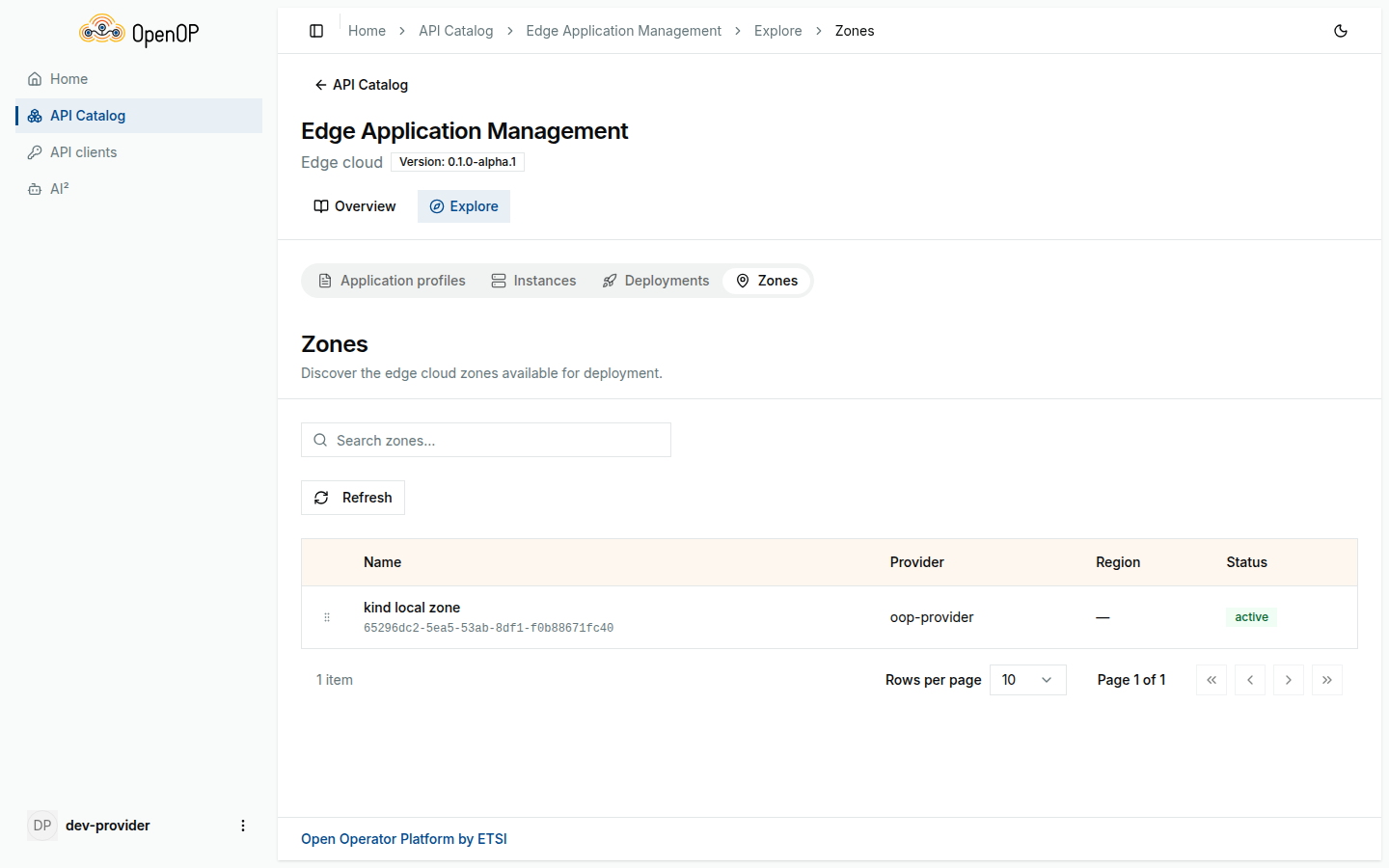
You don't need to note anything down: the Portal offers the zones again when you start an instance in step 4.
3. Register the application
Now describe whoami to the platform. Nothing runs yet: you only tell the platform which image to use and which port the application listens on.
- On the Application profiles tab, click Register application. The dialog Register application opens.
-
Fill in the fields below, and leave every field not listed at its default:
Field Value App name whoamiVersion 1.10Package type CONTAINER(the default isHELM)App provider tutorial_provider(8–64 characters)Repository › Type PublicRepository › Image path traefik/whoami:v1.10Component name webNetwork interface › Interface ID httpNetwork interface › Protocol TCPNetwork interface › Port 80Network interface › Visibility External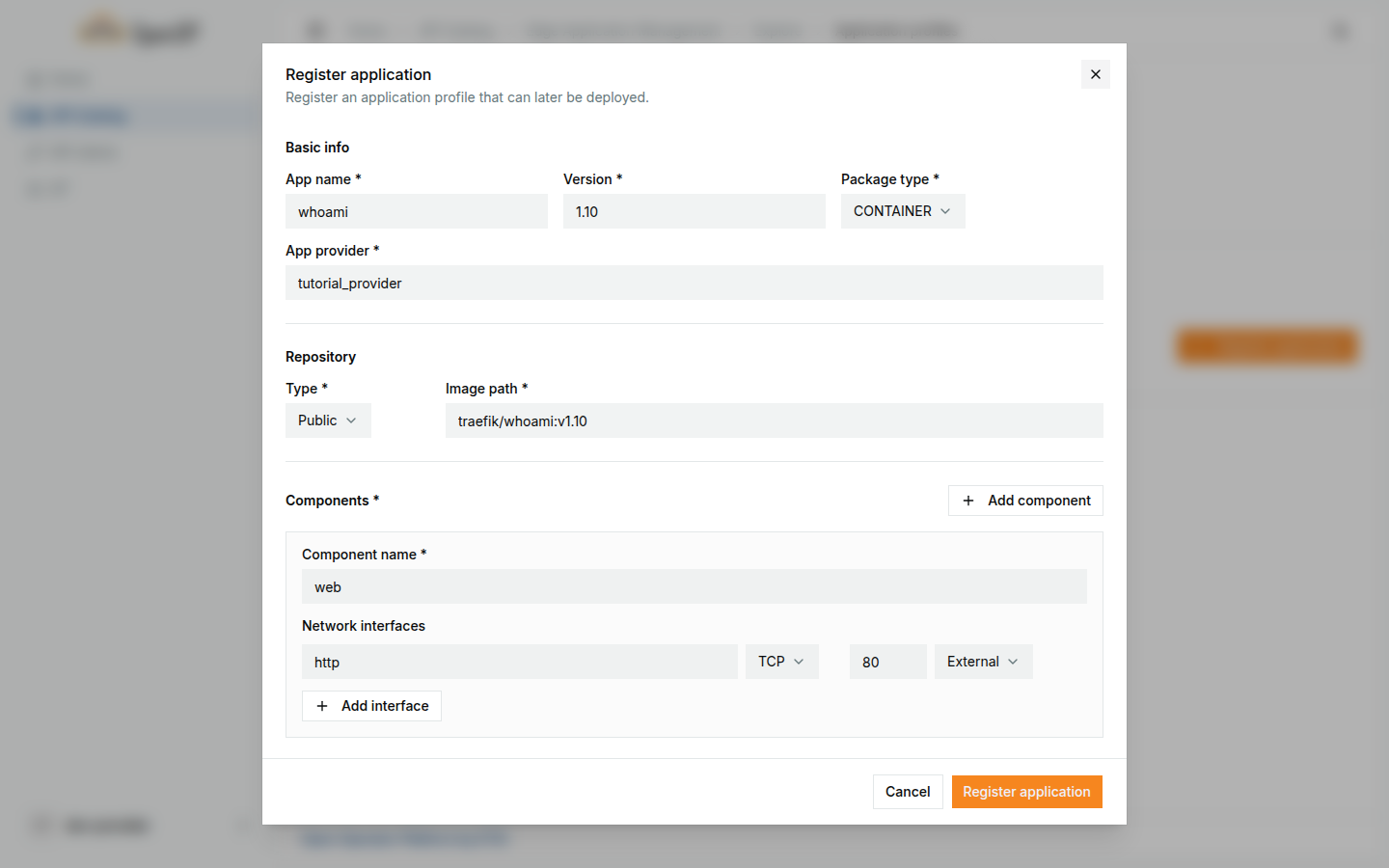
-
Under Required resources, replace the sample JSON with this smaller request:
-
Click Register application.
whoamiappears in the table, with packageCONTAINERand exposed port80.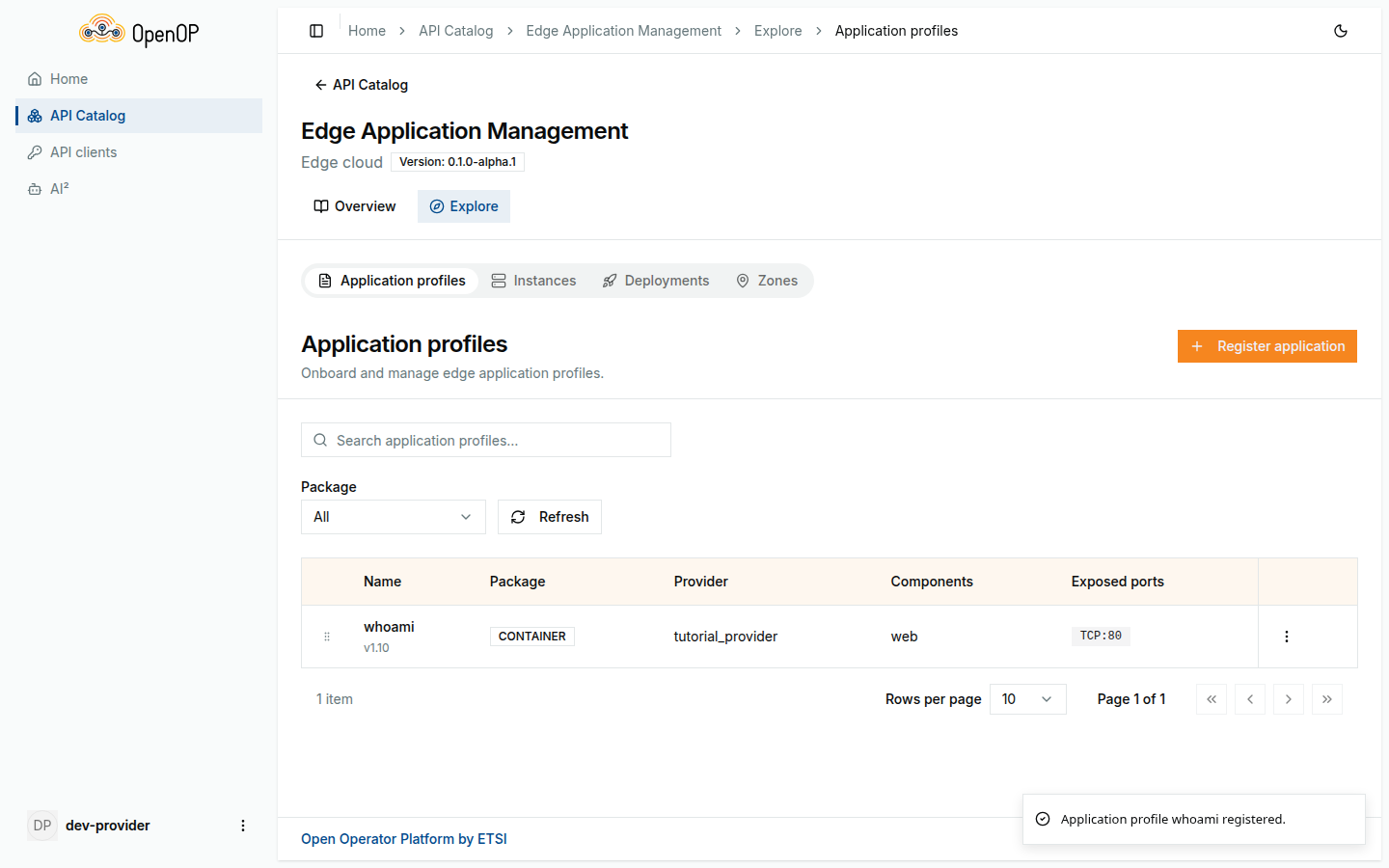
The description of an application is called an app manifest. Send it to OEG:
APP_ID=$(curl -s -X POST "$EAM/apps" \
  -H "Authorization: Bearer $TOKEN" \
  -H "Content-Type: application/json" \
  -d '{
    "name": "whoami",
    "appProvider": "tutorial_provider",
    "version": "1.10",
    "packageType": "CONTAINER",
    "appRepo": {
      "type": "PUBLICREPO",
      "imagePath": "traefik/whoami:v1.10"
    },
    "requiredResources": {
      "infraKind": "kubernetes",
      "applicationResources": {
        "cpuPool": {
          "numCPU": 1,
          "memory": 128,
          "topology": { "minNumberOfNodes": 1, "minNodeCpu": 1, "minNodeMemory": 256 }
        }
      },
      "isStandalone": false
    },
    "componentSpec": [
      {
        "componentName": "web",
        "networkInterfaces": [
          { "interfaceId": "http", "protocol": "TCP", "port": 80, "visibilityType": "VISIBILITY_EXTERNAL" }
        ]
      }
    ]
  }' | jq -r .appId)
echo "$APP_ID"
OEG answers 201 Created with the new application's ID, {"appId": "..."}, which the command stores in APP_ID.
Check that the application is registered:
It prints "whoami".
Name rules
The app name must start with a letter and may contain only letters, digits and underscores, so who-ami is rejected. The App provider field needs 8 to 64 characters of the same kind.
4. Start an instance
Ask the platform to start one copy of whoami in the zone from step 2.
Following the tutorial again?
An application can have only one instance in each zone: a second one is refused with 409 and the code ALREADY_EXISTS. An instance name can also be used only once per zone while that instance exists: a repeated name makes the new instance end failed. Terminate the previous instance first, as in step 7, or use a new name such as whoami02.
- Open the Instances tab and click Create instance.
-
Fill in the dialog Create instance:
Field Value Instance name whoami01Application whoamiEdge zone kind local zone. It is selected for you when it is the only zone. Kubernetes cluster UUID leave empty 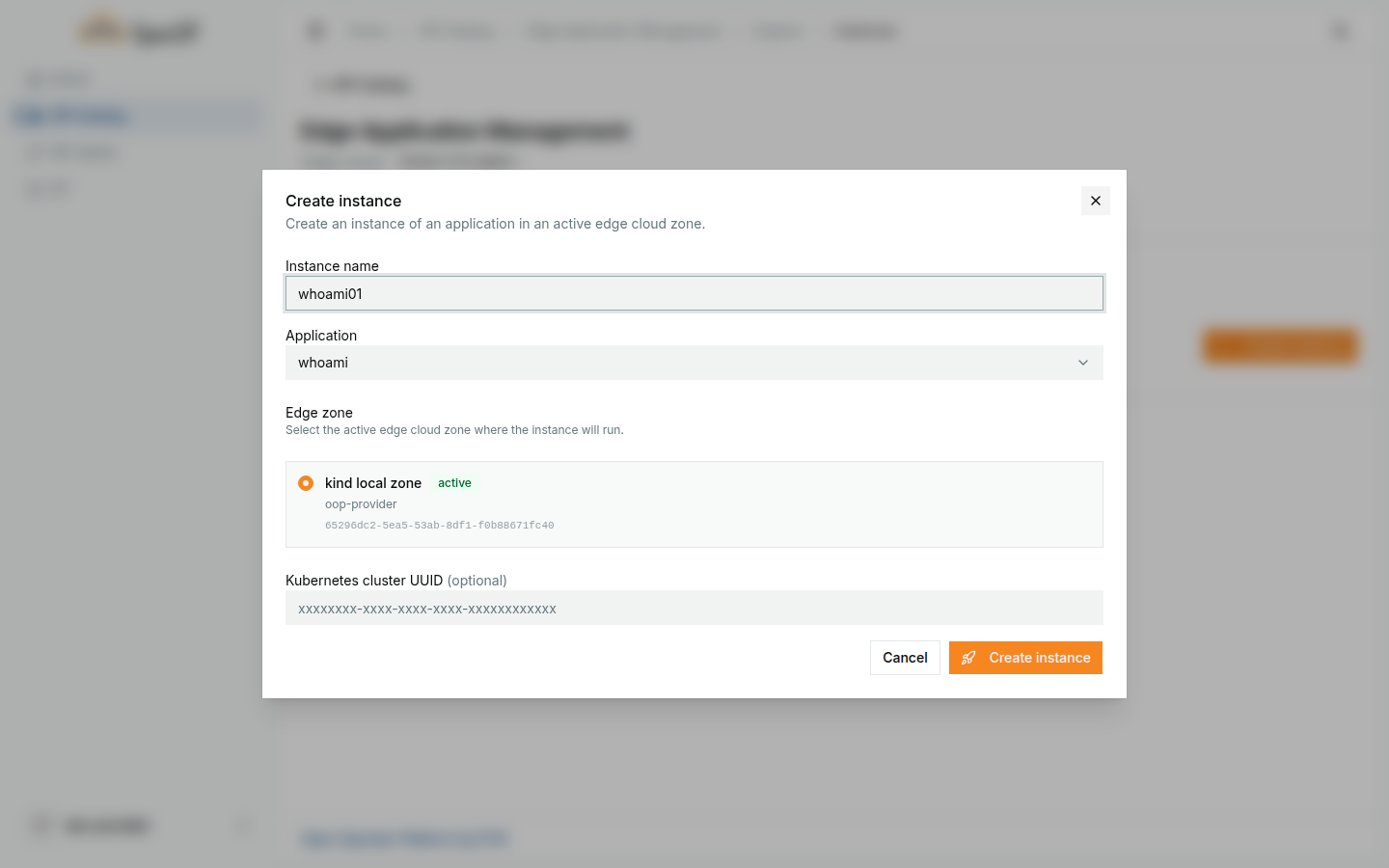
-
Click Create instance. The instance appears with status
instantiating.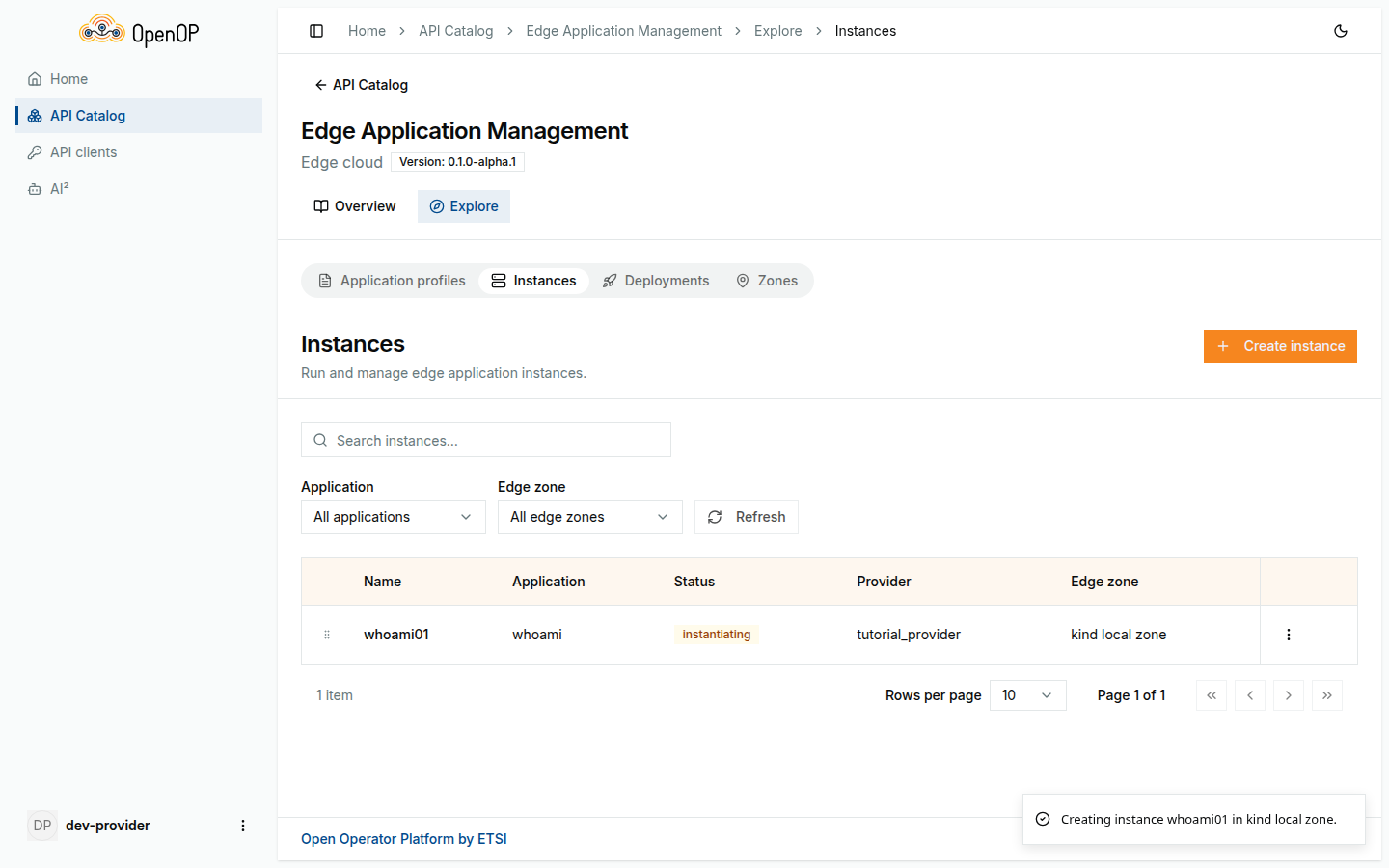
INSTANCE_ID=$(curl -s -X POST "$EAM/appinstances" \
  -H "Authorization: Bearer $TOKEN" \
  -H "Content-Type: application/json" \
  -d "{
    \"name\": \"whoami01\",
    \"appId\": \"$APP_ID\",
    \"edgeCloudZoneId\": \"$ZONE_ID\"
  }" | jq -r .appInstanceId)
echo "$INSTANCE_ID"
OEG answers 202 Accepted. Accepted means that OEG has taken the request and passed it on, but the application is not running yet. The answer already holds the instance with status instantiating:
5. Wait until the instance is ready
Starting an instance takes a while: the cluster has to download the image and start the container. Meanwhile, the instance goes through these statuses:
| Status | Meaning |
|---|---|
instantiating |
The platform is starting the application. |
ready |
The application runs and can be reached. |
failed |
The application could not be started. |
Wait a little, then click Refresh above the Instances table until the status of whoami01 is ready. On kind this takes well under a minute once the image is downloaded.
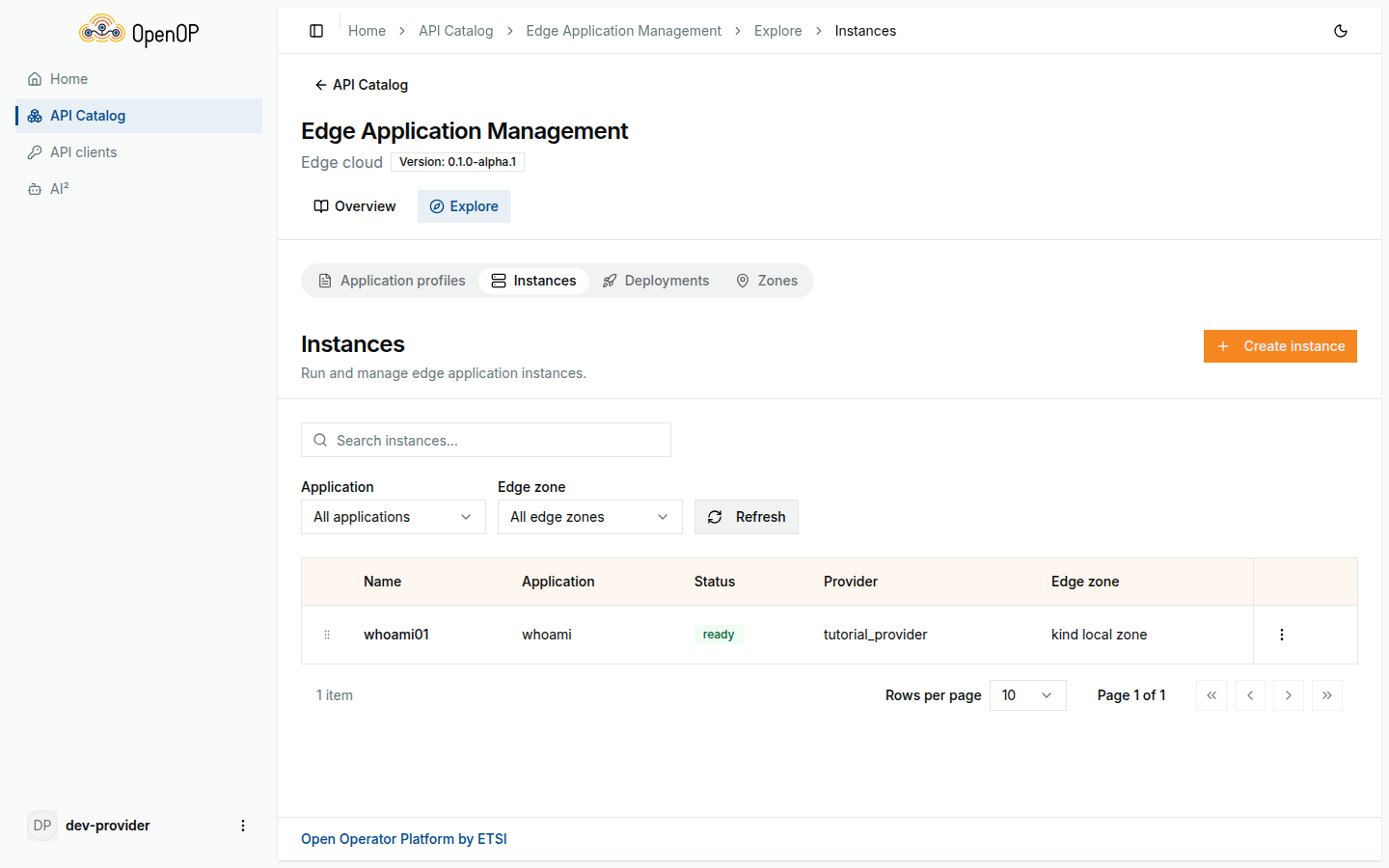
Ask for the instance until its status is ready:
until [ "$(curl -s "$EAM/appinstances?appInstanceId=$INSTANCE_ID" \
             -H "Authorization: Bearer $TOKEN" | jq -r '.[0].status')" = ready ]; do
  echo "still starting..."; sleep 5
done
echo ready
GET /appinstances always answers with a list. The appInstanceId filter narrows it to your instance. Use ?appId=$APP_ID instead to see every instance of the application.
You can also look at the result on the cluster. SRM started whoami in the namespace oop-apps:
If the status turns failed, or stays instantiating for several minutes, see Troubleshooting.
6. Reach your application
A ready instance tells you where it can be reached: an access endpoint with an IP address and a port for each network interface. On kind, the IP address is the address of the kind node.
In the Instances table, click whoami01. Under Access endpoints, the details dialog shows the interface http with a port and an IP address.
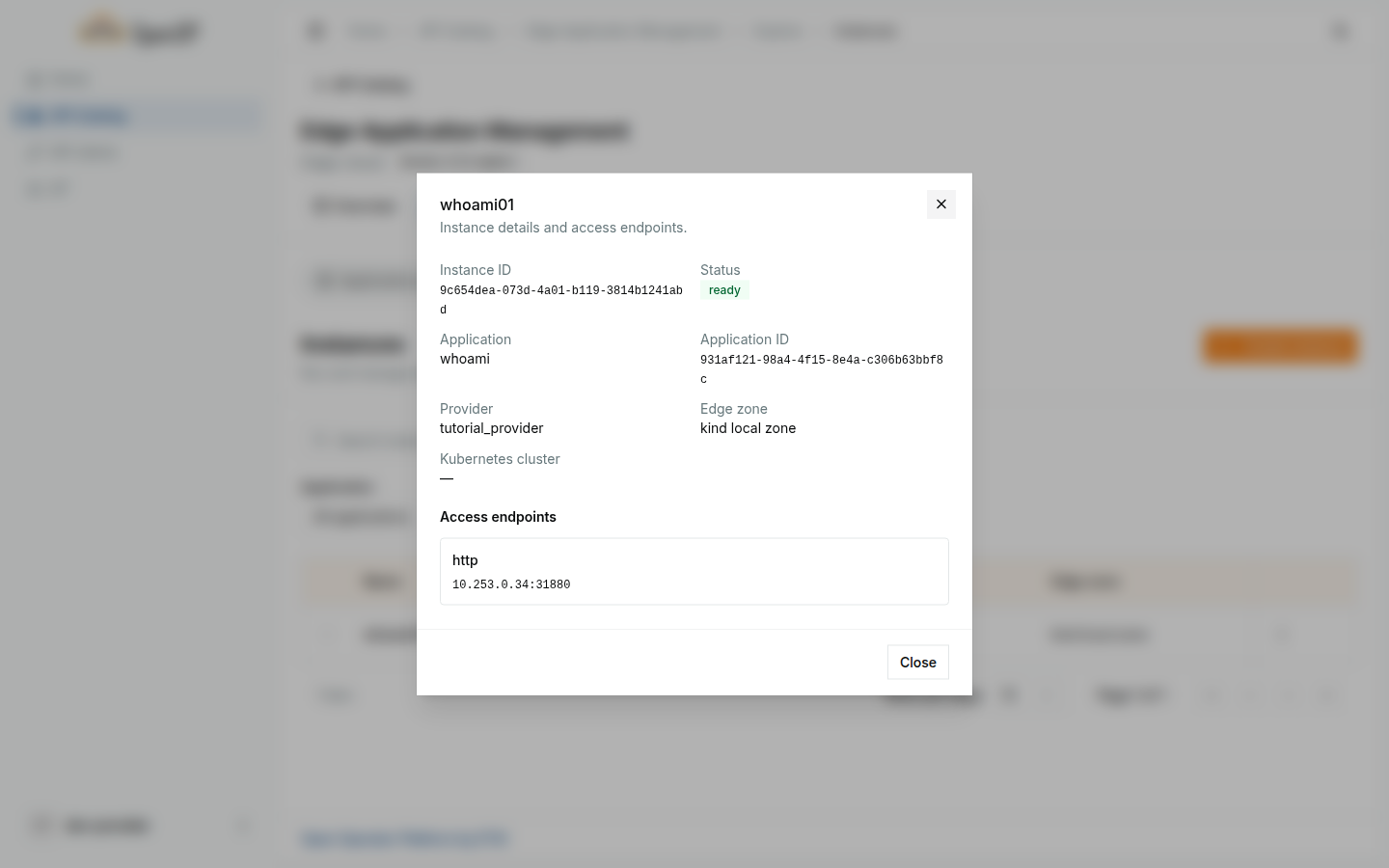
Open that address and port in your browser, or run:
Read the endpoint from the instance:
curl -s "$EAM/appinstances?appInstanceId=$INSTANCE_ID" \
  -H "Authorization: Bearer $TOKEN" | jq '.[0].componentEndpointInfo'
The address is in fqdn on kind. Other zones may give it in ipv4Addresses instead, so the next command takes whichever is there and calls whoami at that address:
whoami answers with details about itself and your request:
Hostname: whoami01-6c54ddc98-ckrhf
IP: 127.0.0.1
IP: ::1
IP: 10.244.0.14
IP: fe80::19:bfff:feac:741f
RemoteAddr: 10.244.0.1:16348
GET / HTTP/1.1
Host: 172.18.0.2:31291
User-Agent: curl/7.81.0
Accept: */*
The Hostname is the name of the pod that SRM started. Compare it with the pod name from kubectl -n oop-apps get pods: they are the same.
7. Terminate the instance
When you no longer need the instance, terminate it. This stops the application and frees its resources on the cluster.
-
In the Instances table, click the ⋮ button at the end of the
whoami01row and choose Delete.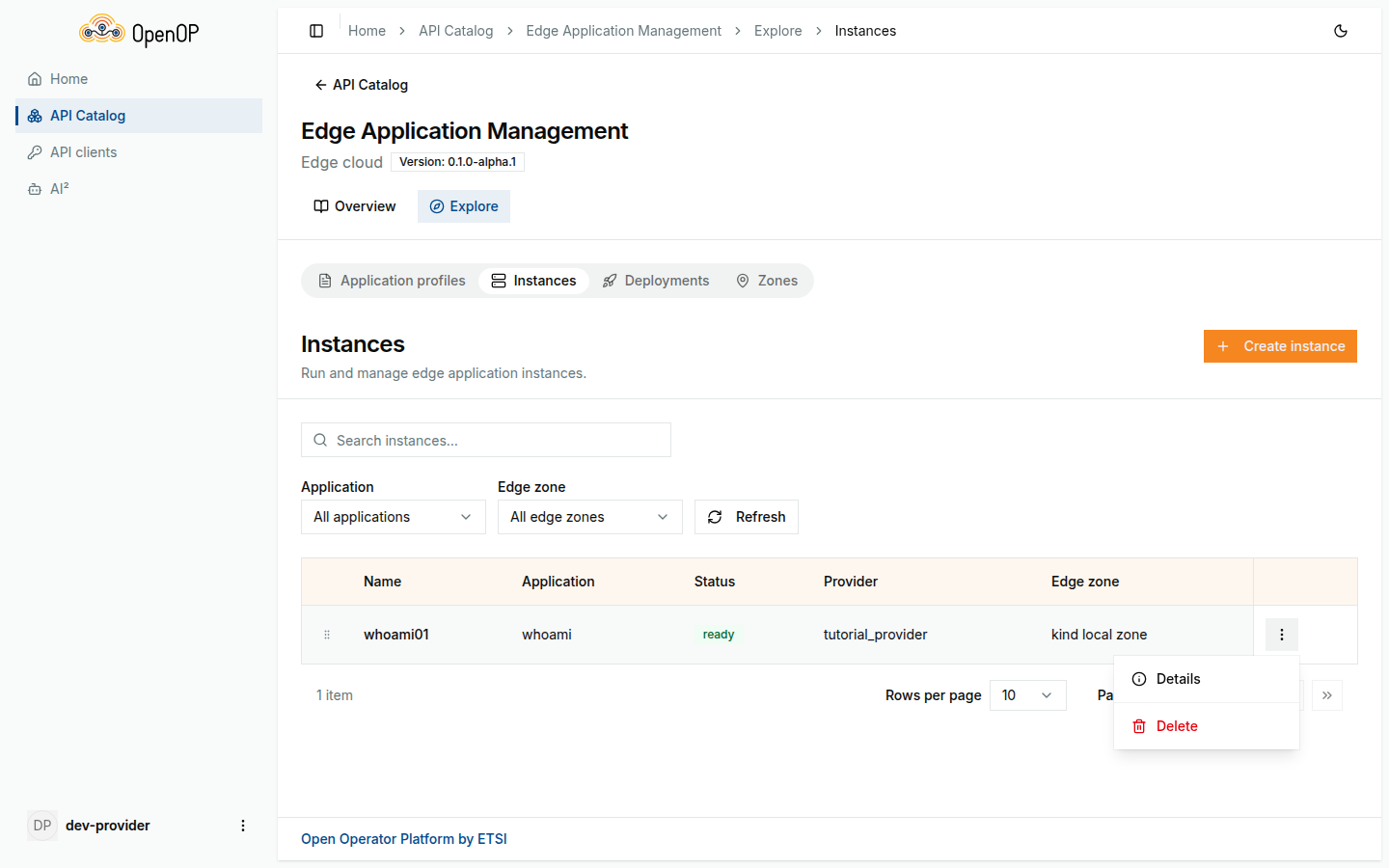
-
Confirm with Delete.
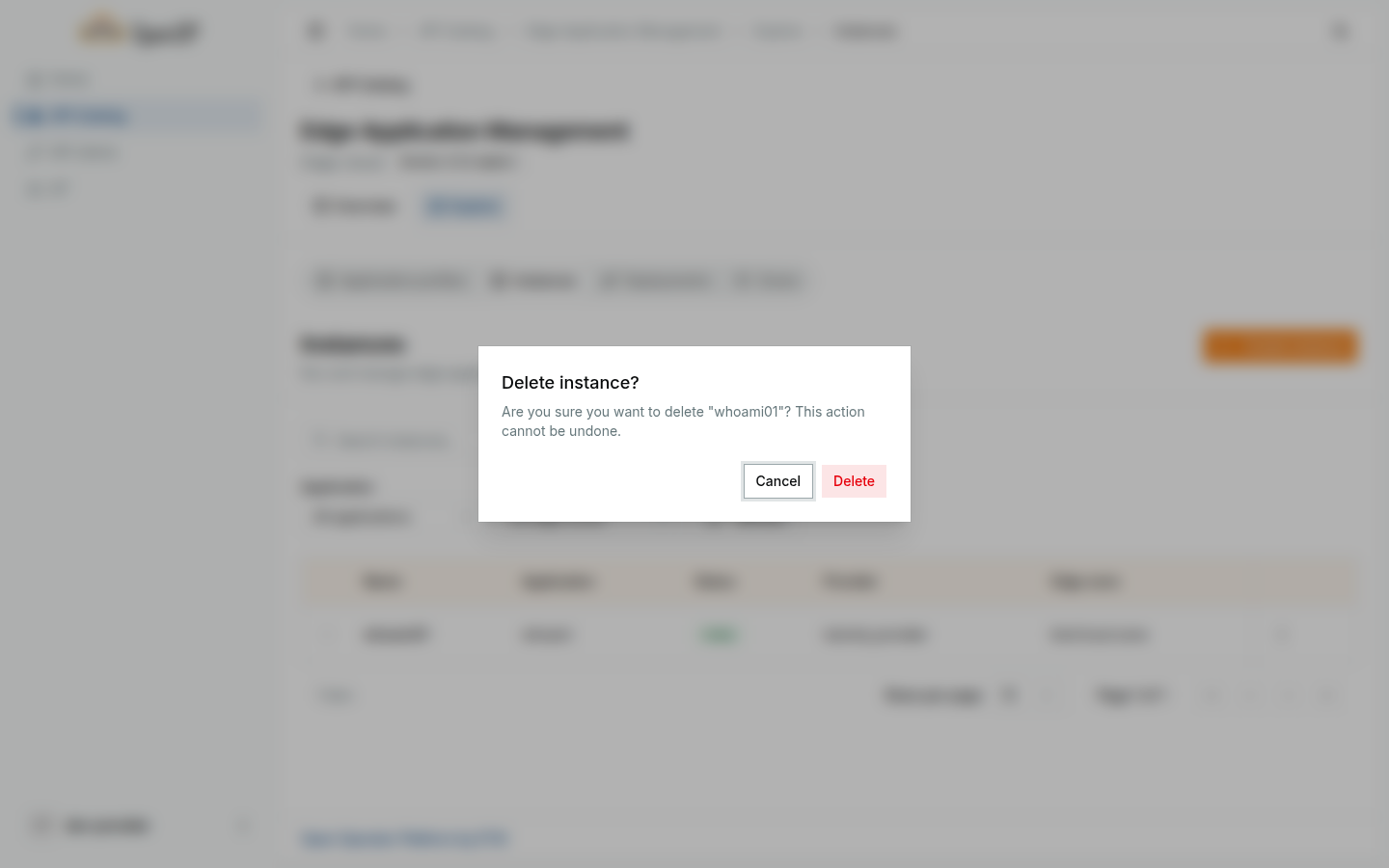
-
whoami01disappears from the table. If it is still listed, click Refresh after a few seconds.
curl -s -o /dev/null -w "%{http_code}\n" -X DELETE "$EAM/appinstances/$INSTANCE_ID" \
  -H "Authorization: Bearer $TOKEN"
It prints 202: as with starting, OEG accepts the request and the platform stops the application in the background. Meanwhile, the instance has status terminating. Wait until it is gone, that is, until the application has no instances left:
kubectl -n oop-apps get pods no longer lists the whoami pod.
8. Remove the application
The application itself is still registered, so you could start a new instance of it at any time. To remove it too:
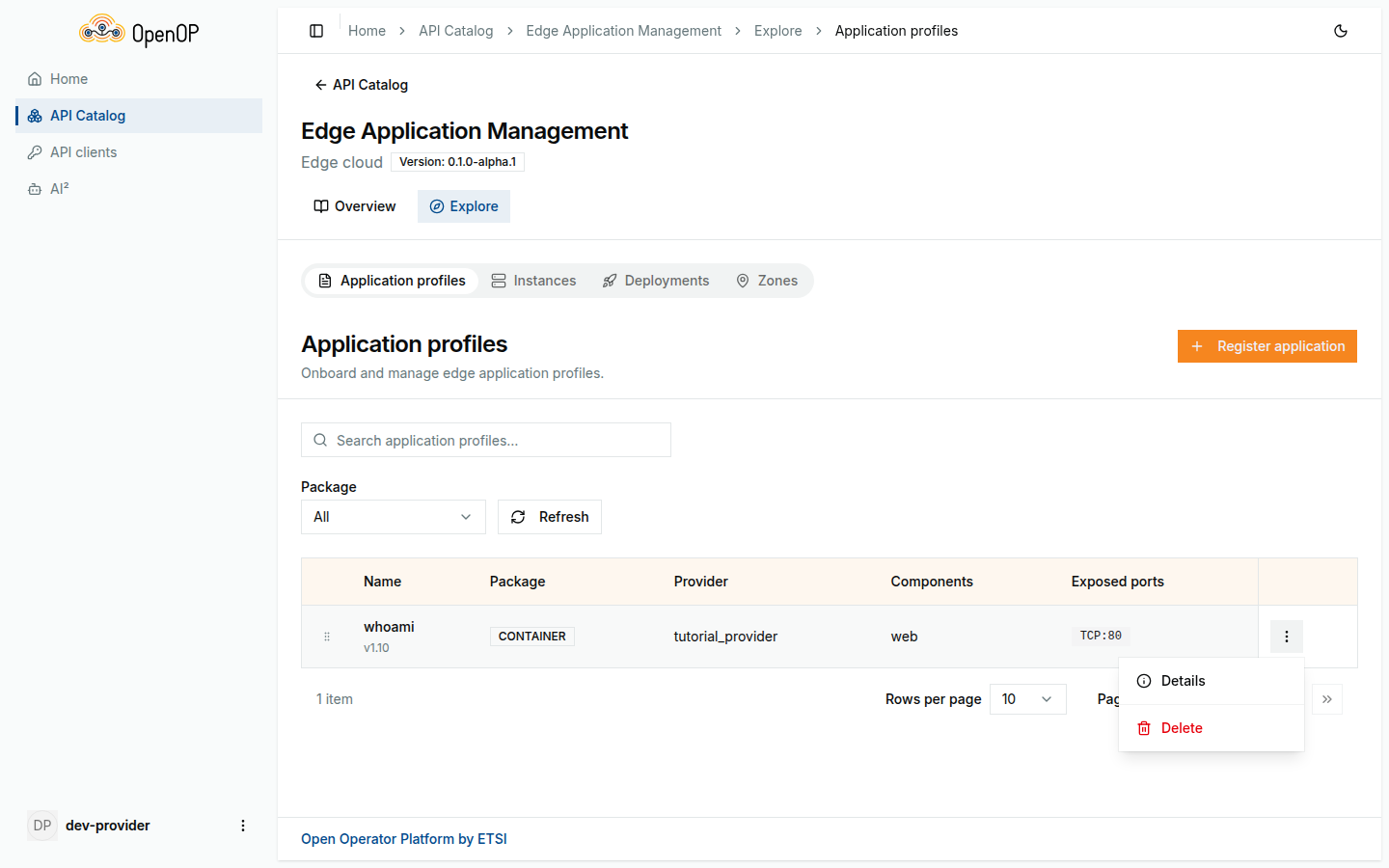
Instances first
You cannot delete an application while it still has an instance. OEG then answers 409 with the code ABORTED. Terminate every instance first, as in step 7, and wait until it is gone.
What you learned
- The difference between an application (a registered description: image, ports, resources) and an application instance (one running copy in one edge cloud zone).
- The lifecycle of an edge application: find a zone, register the application, start an instance, wait until it is
ready, reach it through its access endpoint, terminate it, remove the application. - That starting and terminating are asynchronous: OEG answers
202 Acceptedat once, and you follow the instance's status until the work is done. - That the Portal and the API do the same thing: the Portal is a client of OEG's CAMARA Edge Application Management API, and OEG passes the work to SRM, which runs the application on the zone's cluster.
Next steps
- Use network capabilities: ask the network for better quality, a device's location or a traffic route for your application.
- Federate two operators: deploy an application in a partner operator's zone.
- Troubleshooting: what to check when an instance fails.