Federate two operators
Two operators run their own Operator Platforms. In this tutorial you connect them, so that an App Provider of the first operator can run an application in a zone of the second one without signing up there.
You play both operators. The first one, operator-1, has a zone called Barcelona; the second, operator-2, has Paris. At the end, an App Provider on operator-1 starts the small whoami web server in Paris, and you watch it appear on operator-2's cluster.
Steps 1 to 5 are operator work and step 6 is App Provider work. Each step has a Portal tab and an API tab with the same calls made with curl. You can follow either one. Two short videos show the Portal side: one for steps 3 to 5, one for steps 6 and 8.
Before you start
You need:
-
Two platforms that can reach each other, installed with Deploy with Ansible up to and including
deploy.yml. Skipfederate.yml: this tutorial does by hand what that playbook automates. Each operator's inventory entry needsoop_platform_federation_clientsnaming the other one, so that its Keycloak has a client for the partner.The commands below assume these addresses, with the default NodePorts:
operator-1 operator-2 Public host 192.0.2.10192.0.2.20Portal http://192.0.2.10:30082http://192.0.2.20:30082Keycloak http://192.0.2.10:30081http://192.0.2.20:30081OEG API http://192.0.2.10:32263http://192.0.2.20:32263Federation Manager (EWBI) http://192.0.2.10:30989http://192.0.2.20:30989MCC-MNC 214-07208-01Zone Barcelona Paris The screenshots come from a test setup with other addresses and ports. They don't matter for the steps.
-
A Portal account with the
operatorrole on each platform. For step 6, the account on operator-1 also needs theapp-providerrole and theedge-application-managementAPI product, or you use a second account that has them. The Keycloak chart README explains how to give a user a role. kubectlaccess to both clusters, to read the federation secrets in step 1.-
For the API tab:
curl,jq, and on each platform a Keycloak client that acts as an operator. In Keycloak's admin console (realmoop):- Clients › Create client, client ID
my-operator-tool. Turn on Client authentication and Service account roles, and nothing else. - On the new client, Service account roles › Assign role: realm role
operator. - Client scopes › my-operator-tool-dedicated › Add mapper › By configuration › Audience, with Included Custom Audience
oeg. - Copy the secret from the Credentials tab.
For step 6 you also need an App Provider API client on operator-1, as in Deploy your first application.
- Clients › Create client, client ID
How it fits together
Each platform has its own Federation Manager (FM). The two FMs talk to each other over the GSMA OPG.04 East/Westbound Interface (EWBI); you talk to your own FM through OEG, and never to the partner's. Terms such as EWBI and OPG.04 are defined in the OOP Glossary.
sequenceDiagram
    autonumber
    actor Op as You, as operator-1
    participant OEG1 as OEG (operator-1)
    participant FM1 as FM (operator-1)
    participant KC2 as Keycloak (operator-2)
    participant FM2 as FM (operator-2)
    Op->>OEG1: POST /platform/v1/federation/partners
    OEG1->>FM1: register operator-2 (URL, client ID, secret)
    Op->>OEG1: POST .../agreements
    OEG1->>FM1: operator-2 may use Barcelona
    Op->>OEG1: POST .../partners/{id}/federations
    FM1->>KC2: client-credentials token as operator-1
    FM1->>FM2: OPG.04 CreateFederation
    FM2-->>FM1: federation context + offered zone Paris
    Op->>OEG1: POST .../federations/{ctx}/zones
    FM1->>FM2: OPG.04 ZoneSubscribe (Paris)
Federation is directional. What you set up on operator-1 lets operator-1 use operator-2's zones. For operator-2 to use Barcelona, operator-2's operator does the same steps the other way round. Steps 2 and 3 have to happen on both platforms either way: an FM only accepts calls from partners it has registered, and it only offers the zones an agreement names.
1. Exchange details with your partner
Before anything else, each operator hands the other a few values. Most come from the inventory. The secret is generated by each platform's Keycloak, one per partner client, and lives in the Secret keycloak-credentials.
| operator-2 gives operator-1 | Value |
|---|---|
| Federation URL | http://192.0.2.20:30989 |
| MCC-MNC | 208-01 |
| Token URL | http://192.0.2.20:30081/realms/federation/protocol/openid-connect/token |
| Client ID for operator-1 | operator-1 |
| Client secret for operator-1 | on operator-2's cluster: |
kubectl -n oop get secret keycloak-credentials \
  -o jsonpath='{.data.federation-operator-1-secret}' | base64 -d; echo
operator-1 gives operator-2 the same five values about itself, with the secret from federation-operator-2-secret on operator-1's cluster.
Treat the client secret like a password
Send it over a channel you trust. FM stores it encrypted and never shows it again.
2. Register the partner
Tell your FM who the partner is and how to sign in to it. Do this on both platforms; the steps below are operator-1's.
- Sign in to operator-1's Portal as an operator and open Federation in the sidebar. The list is empty on a new platform.
-
Click Register partner and fill in:
Field Value Name operator-2MCC-MNC 208-01Federation URL http://192.0.2.20:30989. Just the address: FM adds/operatorplatform/federation/v1itself.Their ID on our platform operator-2, the client our Keycloak has for themOur ID with them operator-1Their sign-in URL operator-2's token URL from step 1 Our secret the secret operator-2 gave you 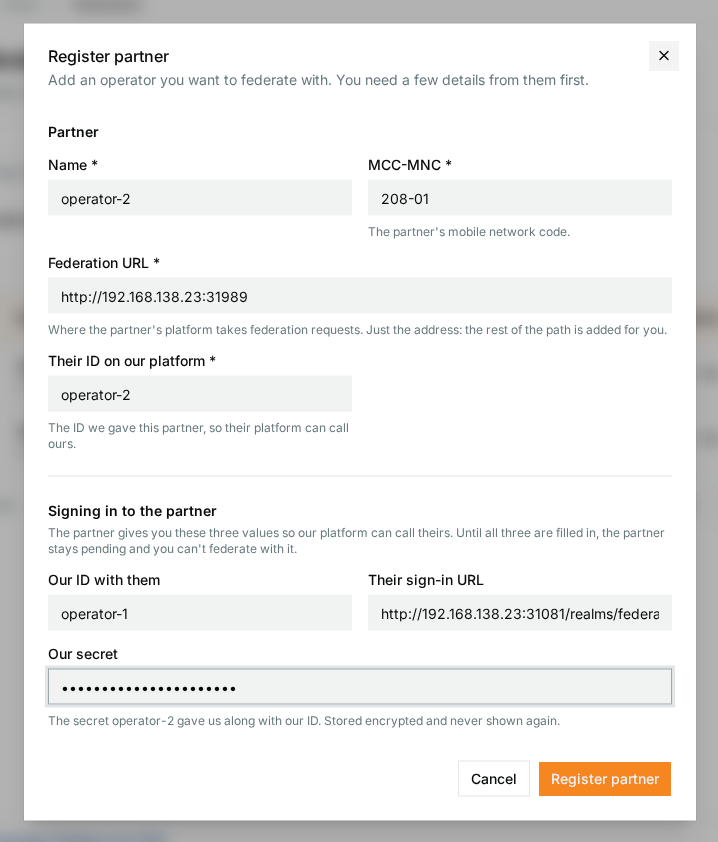
-
Click Register partner. With all three sign-in values filled in, the partner's registration is
active. With all three empty it is saved aspending, and you can't federate with it; a partial set is refused.
Get an operator token from your own Keycloak and keep the base path in a variable:
export CLIENT_ID=my-operator-tool
export CLIENT_SECRET=<the client secret>

OP_TOKEN=$(curl -s http://192.0.2.10:30081/realms/oop/protocol/openid-connect/token \
  -d grant_type=client_credentials \
  -d client_id="$CLIENT_ID" -d client_secret="$CLIENT_SECRET" | jq -r .access_token)
FED=http://192.0.2.10:32263/platform/v1/federation
Register the partner. The body is FM's own partner record, not a GSMA schema:
PARTNER_ID=$(curl -s -X POST "$FED/partners" \
  -H "Authorization: Bearer $OP_TOKEN" -H "Content-Type: application/json" \
  -d '{
    "name": "operator-2",
    "mcc_mnc": "208-01",
    "oauth2_client_id": "operator-2",
    "base_url": "http://192.0.2.20:30989",
    "our_client_id": "operator-1",
    "token_endpoint": "http://192.0.2.20:30081/realms/federation/protocol/openid-connect/token",
    "our_client_secret": "<the secret operator-2 gave you>",
    "status": "active"
  }' | jq -r .id)
echo "$PARTNER_ID"
FM answers 201 with the partner, including "our_client_secret_set": true and never the secret itself. The id is the partner ID every later call uses. If you lose it:
PARTNER_ID=$(curl -s "$FED/partners" -H "Authorization: Bearer $OP_TOKEN" \
  | jq -r '.[] | select(.oauth2_client_id == "operator-2") | .id')
A partner can't be deleted, only retired with PATCH $FED/partners/$PARTNER_ID and {"status": "decommissioned"}.
Steps 3 to 5 in the Portal
Check the agreement, create the federation, and subscribe to Paris, as operator-1.
3. Write the agreement
The agreement says which of your zones the partner may use and what it may do there. A partner sees your zones in the answer to its CreateFederation, so write the agreement before the partner federates with you. Again on both platforms; here operator-1 offers Barcelona to operator-2.
- On the Federation page, open the ⋮ menu of
operator-2and choose Agreements, then Set up agreement. - Under Zones offered, tick Barcelona. Under Permitted capabilities, keep Deploy applications and Remove applications.
- Below that, set what the partner gets in each zone: the resources reserved for it, the most it may use, and at least one flavour it can deploy with. The defaults give one flavour,
small. -
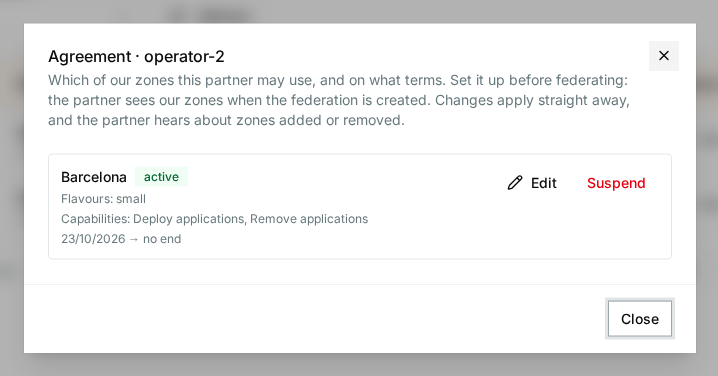
Keep Valid from at today, leave Valid until empty for an agreement with no end date, and click Create agreement. The agreement shows as
active.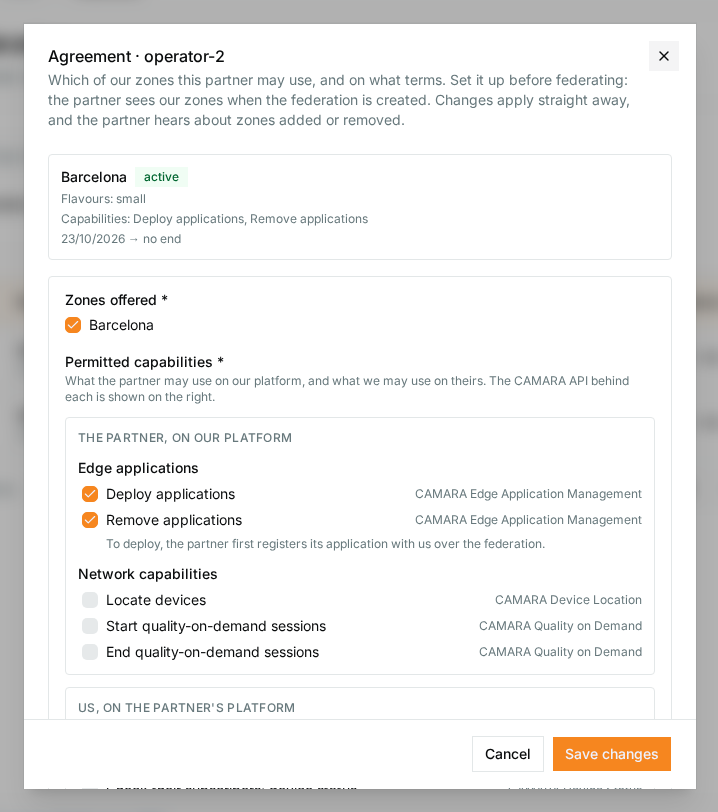
A partner has exactly one agreement. To change it later, use Edit in the same dialog; Suspend stops it without losing it. FM tells an already federated partner about zones you add or take away.
Find the ID of your zone:
curl -s "$FED/local-zones" -H "Authorization: Bearer $OP_TOKEN" | jq
ZONE=$(curl -s "$FED/local-zones" -H "Authorization: Bearer $OP_TOKEN" \
  | jq -r '.[] | select(.name == "Barcelona") | .id')
Then create the agreement. zone_resources holds the GSMA terms for each zone you permit:
curl -s -X POST "$FED/agreements" \
  -H "Authorization: Bearer $OP_TOKEN" -H "Content-Type: application/json" \
  -d "{
    \"partner_op_id\": \"$PARTNER_ID\",
    \"permitted_api_types\": [\"install-app\", \"remove-app\"],
    \"permitted_zone_ids\": [\"$ZONE\"],
    \"zone_resources\": {
      \"$ZONE\": {
        \"reservedComputeResources\": [{\"cpuArchType\": \"ISA_X86_64\", \"numCPU\": \"2\", \"memory\": 4096}],
        \"computeResourceQuotaLimits\": [{\"cpuArchType\": \"ISA_X86_64\", \"numCPU\": \"4\", \"memory\": 8192}],
        \"flavoursSupported\": [{
          \"flavourId\": \"small\", \"cpuArchType\": \"ISA_X86_64\",
          \"supportedOSTypes\": [{\"architecture\": \"x86_64\", \"distribution\": \"UBUNTU\",
            \"version\": \"OS_VERSION_UBUNTU_2204_LTS\", \"license\": \"OS_LICENSE_TYPE_FREE\"}],
          \"numCPU\": 1, \"memorySize\": 1024, \"storageSize\": 10
        }]
      }
    },
    \"valid_from\": \"$(date -u +%Y-%m-%dT%H:%M:%SZ)\",
    \"status\": \"active\"
  }" | jq '{id, status, permitted_zone_ids}'
A second POST for the same partner answers 409 agreement-exists. Change the agreement with PATCH $FED/agreements/<id> instead; GET $FED/partners/$PARTNER_ID shows it under agreements.
4. Create the federation
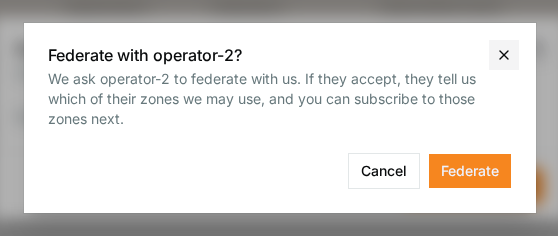
Now operator-1's FM asks operator-2's FM to federate. This is the first call that crosses between the two platforms, so it's also the one that fails if an address, a client ID or a secret is wrong.
- On the Federation page, open the ⋮ menu of
operator-2and choose Federation, then Create federation. -
Confirm with Federate.
-
The dialog now shows the federation: its Context ID, the partner's networks, and Offered zones, the number of zones operator-2 lets you use.
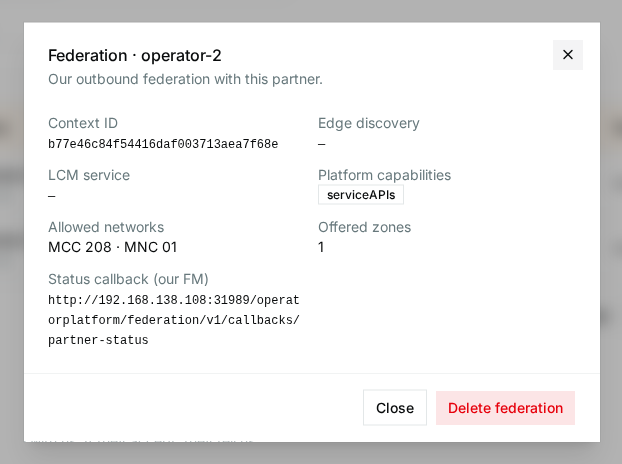
CreateFederation needs your own status-callback link, which FM knows. Read it from your identity rather than typing it:
STATUS_LINK=$(curl -s "$FED/identity" -H "Authorization: Bearer $OP_TOKEN" | jq -r .partner_status_link)

curl -s -X POST "$FED/partners/$PARTNER_ID/federations" \
  -H "Authorization: Bearer $OP_TOKEN" -H "Content-Type: application/json" \
  -d "{\"initialDate\": \"$(date -u +%Y-%m-%dT%H:%M:%SZ)\", \"partnerStatusLink\": \"$STATUS_LINK\"}" \
  | tee federation.json | jq
CTX=$(jq -r .federationContextId federation.json)
The body is GSMA's FederationRequestData. The answer, GSMA's FederationResponseData, is relayed unchanged from the partner:
{
  "federationContextId": "cd206d96a2874d50a30b4c3df10967b1",
  "platformCaps": ["serviceAPIs"],
  "partnerOPFederationId": "operator-2",
  "offeredAvailabilityZones": [
    { "zoneId": "d3e8a7b7-9ffb-5b2e-b704-79e3ef61ca27", "geographyDetails": "Paris" }
  ],
  "federationExpiryDate": null,
  "federationRenewalDate": null
}
If this step fails, the answer says which side refused. The usual causes: operator-2 hasn't registered operator-1 yet (step 2 on the other side), the secret is wrong, or operator-1's FM can't reach operator-2's ports 30081 and 30989.
5. Subscribe to the partner's zone
An offered zone isn't usable yet. Subscribing tells operator-2 you want it, and operator-2 answers with the resources and flavours it reserves for you there. FM needs that answer to deploy anything in the zone.
-
Open the ⋮ menu of
operator-2and choose Zones. Paris shows asOffered.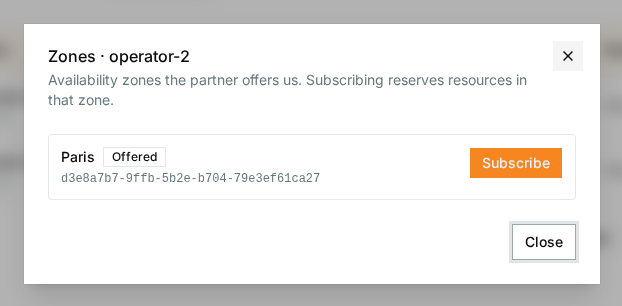
-
Click Subscribe. Paris turns
Subscribed, with the resources reserved for you.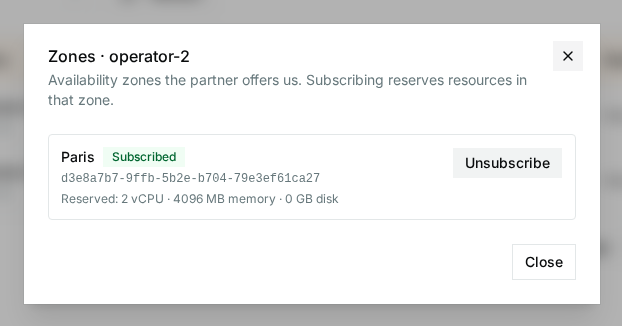
-
Close the dialog. On the Federation page,
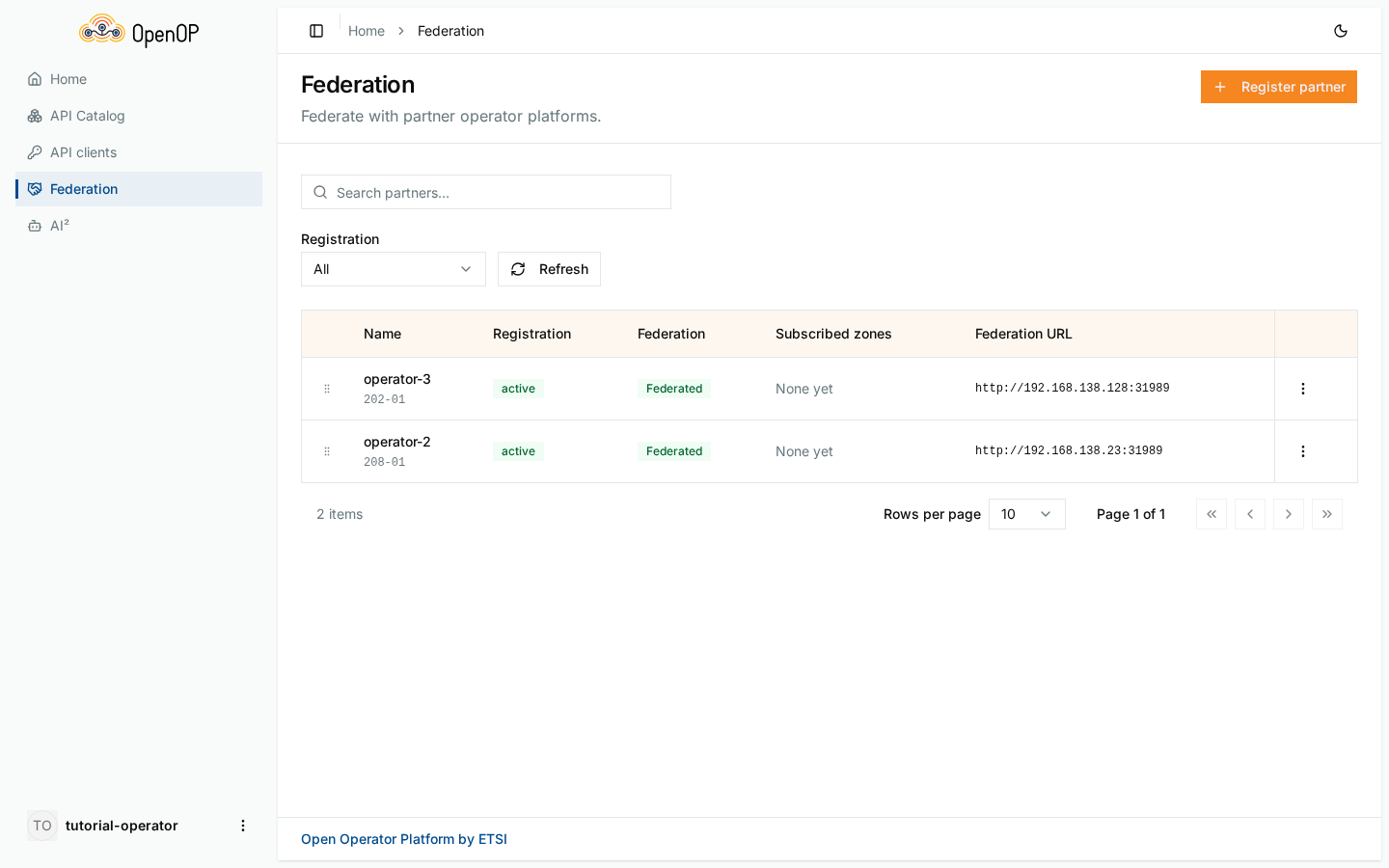
operator-2is nowactive,Federated, with Paris under Subscribed zones.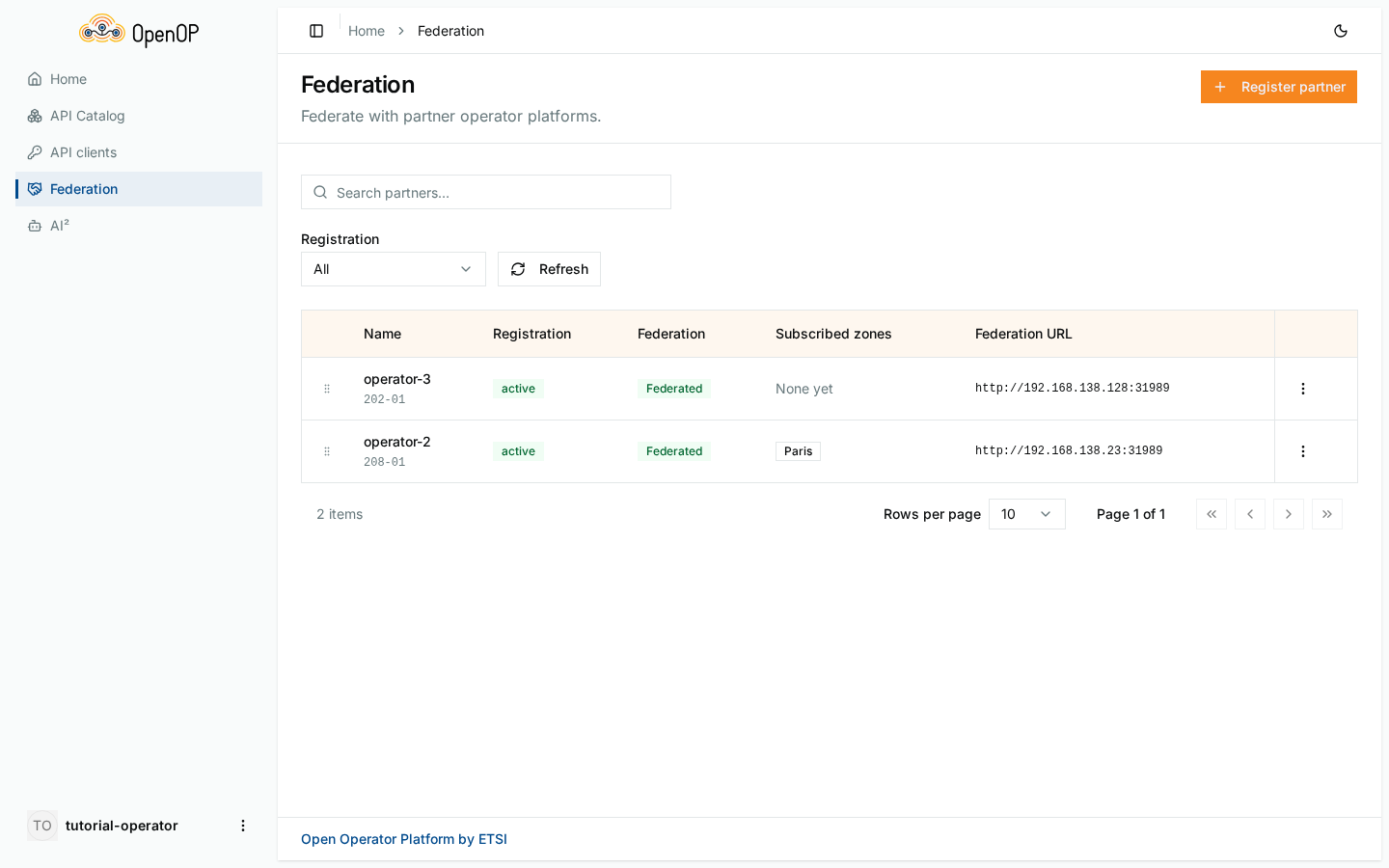
Take the zone ID from the CreateFederation answer and subscribe:
PARIS=$(jq -r '.offeredAvailabilityZones[] | select(.geographyDetails == "Paris") | .zoneId' federation.json)

curl -s -X POST "$FED/partners/$PARTNER_ID/federations/$CTX/zones" \
  -H "Authorization: Bearer $OP_TOKEN" -H "Content-Type: application/json" \
  -d "{\"acceptedAvailabilityZones\": [\"$PARIS\"]}" | jq
The answer, GSMA's ZoneRegistrationResponseData, lists for each zone what operator-2 reserved and the flavours you may deploy with:
{
  "acceptedZoneResourceInfo": [
    {
      "zoneId": "d3e8a7b7-9ffb-5b2e-b704-79e3ef61ca27",
      "reservedComputeResources": [{ "cpuArchType": "ISA_X86_64", "numCPU": "2", "memory": 4096 }],
      "computeResourceQuotaLimits": [{ "cpuArchType": "ISA_X86_64", "numCPU": "4", "memory": 8192 }],
      "flavoursSupported": [{ "flavourId": "small", "...": "..." }]
    }
  ]
}
GET $FED/partners/$PARTNER_ID/federations/$CTX/zones reads the zone data again, and DELETE .../zones/$PARIS unsubscribes.
6. Deploy an application in the partner's zone
Switch roles: you're now an App Provider on operator-1. Nothing here is specific to federation. Paris is simply one more zone in the list, and the steps are those of Deploy your first application, with Paris instead of the local zone.
Steps 6 and 8 in the Portal
Start whoami in Paris, wait for ready, look at its details, delete it.
- Register
whoamion operator-1 exactly as in step 3 of the first tutorial, if you haven't already. Its image has to be in a public registry: operator-1's FM passes the image location to operator-2, which pulls it itself. -
Open API Catalog › Edge Application Management › Explore › Instances and click Create instance. Name it
whoamiparis, pickwhoami, and select Paris. A partner's zone shows asfederation · Paris, next to your own Barcelona. (The screenshot's setup has a third operator, which is where Athens comes from.)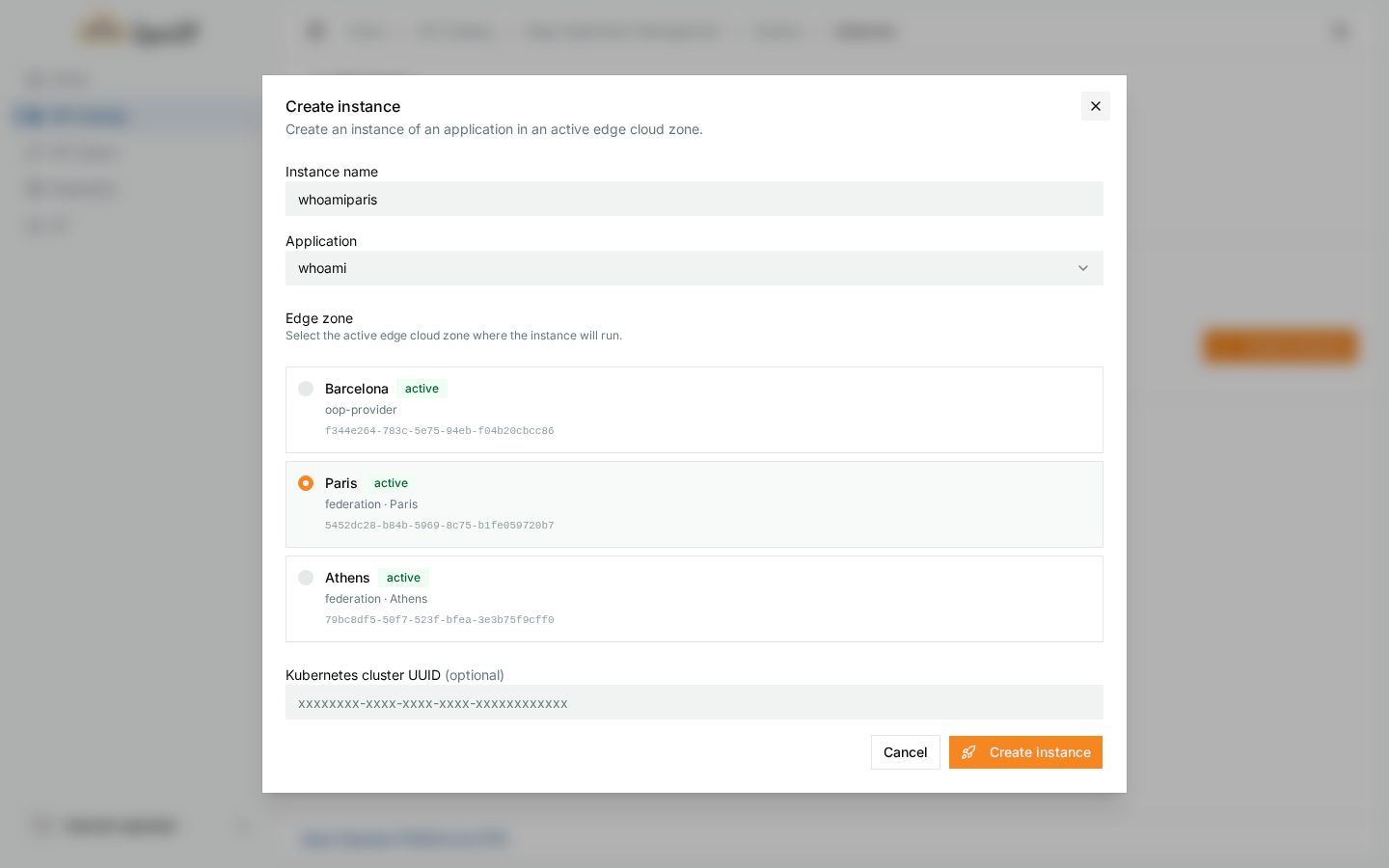
-
Click Create instance and wait for
ready, clicking Refresh now and then. The first deploy of an application to a partner takes a little longer, because operator-1's FM first onboards the application at operator-2.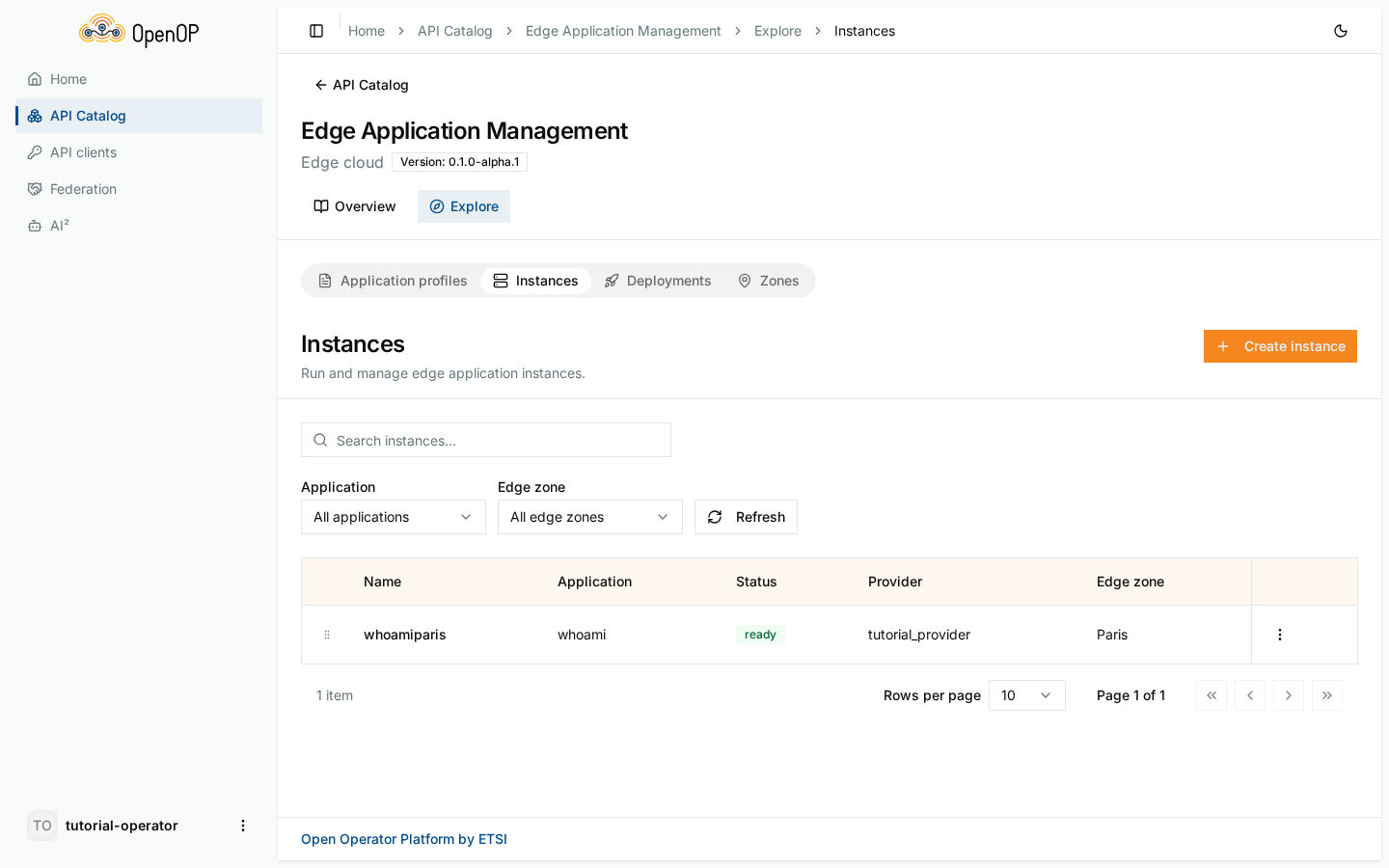
-
Click
whoamiparisfor its details. Access endpoints stays empty for an instance that runs at a partner: Release 2 doesn't fetch the partner's endpoints yet (see the next step).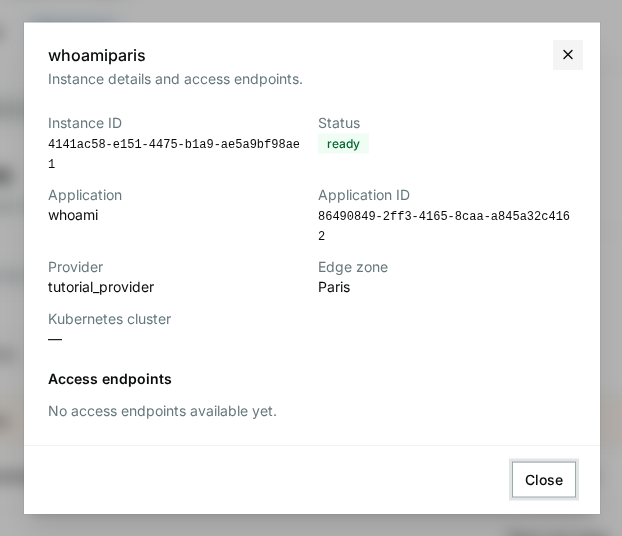
Use an App Provider token ($TOKEN) and EAM=http://192.0.2.10:32263/edge-application-management/v0.1alpha1, as in Deploy your first application. Register whoami as in its step 3 and keep APP_ID.
The zone list now has Paris, with edgeCloudProvider set to federation:
curl -s "$EAM/edge-cloud-zones" -H "Authorization: Bearer $TOKEN" \
  | jq -c '.[] | {edgeCloudZoneName, edgeCloudProvider, edgeCloudZoneId}'
{"edgeCloudZoneName":"Barcelona","edgeCloudProvider":"oop-provider","edgeCloudZoneId":"f344e264-..."}
{"edgeCloudZoneName":"Paris","edgeCloudProvider":"federation","edgeCloudZoneId":"5452dc28-..."}
The ID differs from the zoneId operator-2 sent in step 4: each platform gives a partner's zone an ID of its own. Use the one from this list.
ZONE_ID=$(curl -s "$EAM/edge-cloud-zones" -H "Authorization: Bearer $TOKEN" \
  | jq -r '.[] | select(.edgeCloudZoneName == "Paris") | .edgeCloudZoneId')

INSTANCE_ID=$(curl -s -X POST "$EAM/appinstances" \
  -H "Authorization: Bearer $TOKEN" -H "Content-Type: application/json" \
  -d "{\"name\": \"whoamiparis\", \"appId\": \"$APP_ID\", \"edgeCloudZoneId\": \"$ZONE_ID\"}" \
  | jq -r .appInstanceId)

until [ "$(curl -s "$EAM/appinstances?appInstanceId=$INSTANCE_ID" \
             -H "Authorization: Bearer $TOKEN" | jq -r '.[0].status')" = ready ]; do
  echo "still starting..."; sleep 5
done
echo ready
Behind the scenes, operator-1's SRM saw that Paris isn't one of its own zones and handed the deploy to operator-1's FM. That FM onboarded whoami at operator-2 and sent OPG.04 InstallApp; operator-2's FM passed it to its own SRM, which started the container, and the "ready" travelled back the same way. Federation Manager shows the whole sequence.
7. Check it on the partner's side
The application runs on operator-2's cluster, in namespace oop-apps, under a name operator-2 chose:
NAME                                                        READY   STATUS    RESTARTS   AGE
pod/d341faed-b8b7-4440-9033-af28d486188d-8547d56b6c-f9g99   1/1     Running   0          14s

NAME                                           TYPE       CLUSTER-IP     PORT(S)
service/d341faed-b8b7-4440-9033-af28d486188d   NodePort   10.43.254.28   80:32247/TCP
whoami answers on operator-2's address and that NodePort:
operator-1 never sees operator-2's pod names, namespaces or internal addresses: FM strips them before anything crosses the border. The App Provider doesn't get an access endpoint for a partner-hosted instance either: Release 2 doesn't pass the partner's access endpoints back.
8. Clean up
-
On the Instances tab, open the ⋮ menu of
whoamiparis, choose Delete and confirm. Operator-1's FM sends OPG.04RemoveAppto operator-2, and the instance leaves the list.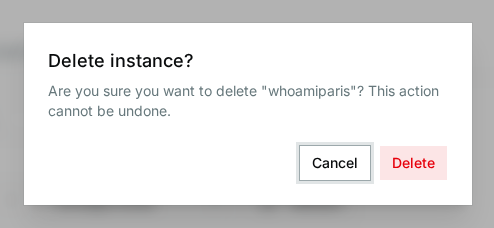
-
If you're done with whoami, delete it on the Application profiles tab.
Leave the federation in place if you want to keep using Paris. To end it, open Federation on the partner's row and click Delete federation: that also drops your zone subscriptions. The partner registration and the agreement stay.
On operator-2's cluster, kubectl -n oop-apps get pods shows nothing left.
What you learned
- Federation needs both operators: each registers the other and writes an agreement before either one federates.
- A federation goes one way. operator-1's federation with operator-2 lets operator-1 use Paris; operator-2 needs its own to use Barcelona.
- An offered zone becomes usable once you subscribe to it.
- For an App Provider, a partner's zone is just another zone: the same API, the same Portal page, with
federationas the provider. - The two Federation Managers speak GSMA OPG.04; everything you send them goes through your own OEG.
federate.yml in Deploy with Ansible does steps 2 to 4 for every pair of operators in an inventory, so you don't repeat them by hand on larger setups.
Next steps
- Federation Manager: what FM does, the OPG.04 operations Release 2 supports, and where to read the specs.
- Deploy with Ansible: bring up three or more federated operators in one go.
- Deploy your first application: the full application lifecycle on a single platform.